Main UI
Main UI
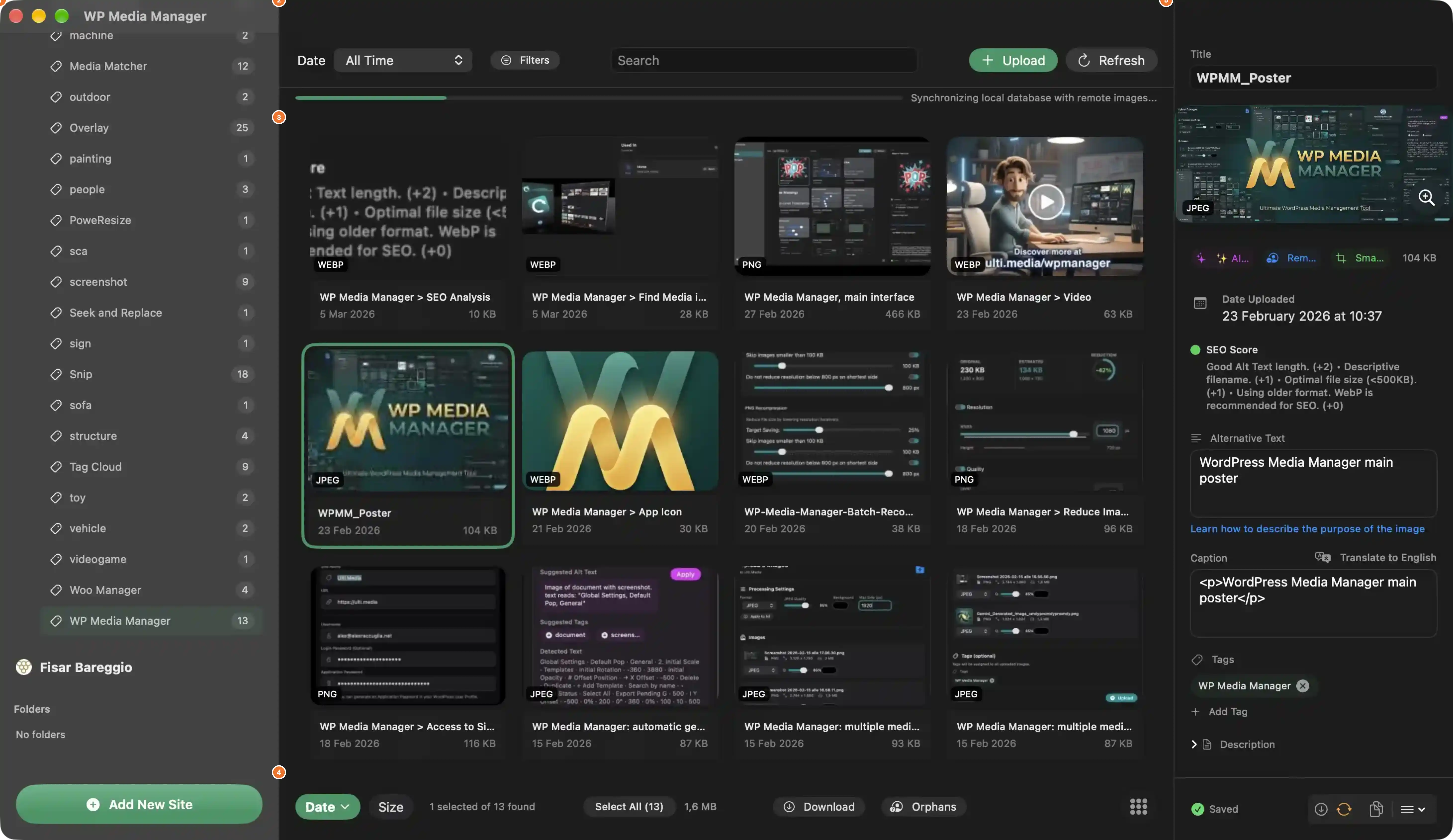
A three-pane macOS workspace for managing WordPress/WooCommerce media. The left pane navigates sites, tags and folders; the centre pane is the filterable, selectable media library; the right pane edits the currently selected item. The numbered annotations divide the interface into the following topics.
1. Site, Tag and Folder Navigation (left pane, top)
- Lists the connected site (here Woo Manager / WP Media Manager) and, beneath it, every tag with its local media count; a tag acts as an immediate filter for the grid.
- Below the tags, the Folders area lists locally organised folders; it shows No folders when none exist.
- Selecting a site, tag or folder re-scopes everything shown in the centre grid.
- Add New Site at the bottom opens the form used to connect and test a new WordPress site; existing sites can be edited or removed from each site's context menu.
- Right-clicking a site offers Edit Site and Delete Site.
2. Filter Bar (top of the centre pane)
- Date restricts the library to a time window (All Time, This Month, Last Month, This Year, Last Year, Last 7/30 Days, Last 3/6/12 Months, Custom Range); Custom Range reveals start and end date selectors.
- Filters expands advanced narrowing by file type (JPEG, PNG, GIF, WebP, SVG, other), resolution bucket (<500 px, 500–1500 px, 1500–3000 px, >3000 px) and file weight (<100 KB, 100–500 KB, 0.5–2 MB, >2 MB).
- Search matches text in title, alternative text and description.
- Filtering is cumulative: date, then tag, then search, then file-type visibility, then advanced criteria.
3. Upload and Synchronisation Controls (top-right of the centre pane)
- Upload opens the image selection flow and leads to the upload confirmation window, where format, quality, resizing, metadata and tags are reviewed per image before publishing.
- Refresh re-synchronises the local cache with the remote WordPress media library.
- While synchronising, a progress bar and the message “Synchronizing local database with remote images…” appear beneath the filter bar.
4. Inspector Header (top of the right pane)
- Shows and edits the item's title directly.
- Displays the media preview: image or video playback, with a transparency checkerboard behind images.
- A file-type badge (JPEG, PNG, WebP…) and the file size identify the asset; a magnifying-glass control opens the item in a dedicated zoomable viewer window.
5. Media Grid Canvas (centre pane)
- Lazy, adaptive thumbnail grid of all media for the current site; each tile shows a preview, a file-type badge and, at larger zoom levels, the title, upload date and file size.
- Selection: a single click selects one item, Command-click toggles items, Shift-click selects a range, and dragging across empty space draws a marquee that selects everything it intersects.
- Each tile's context menu offers Find in WordPress Site, Download, Reduce File Size (images only) and Delete Media (destructive).
- Drag and drop area: the grid accepts dropped files. Dropped images are handed to the upload confirmation flow for review; a dropped
.wpmmbatchfile is routed as a batch import bound to the site currently displayed, without asking for a destination. Dropped content is never published immediately — it always passes through the confirmation step.
6. Bottom Bar and Bulk Actions (bottom of the centre pane)
- Sorts by Date or Size and toggles ascending/descending.
- Reports how many items are selected out of the total found, and the combined size of the current selection.
- Select All / Deselect All expands or clears the selection.
- Download exports the selected items to a chosen folder.
- Orphans checks the selected items against posts, pages and products and replaces the selection with anything unreferenced.
- A zoom popover adjusts grid thumbnail size (50–300) and toggles visibility of Images, Videos, PDFs and Other Files; these visibility choices are remembered per site.
7. Inspector Editing Sections (right pane, below the header)
- Date Uploaded states when the asset was published to WordPress.
- SEO Score shows a traffic-light rating with the reasoning (alt-text length and descriptiveness, filename quality, file size, format). It guides optimisation rather than blocking any action.
- Alternative Text edits the accessibility/SEO description; a helper link explains how to describe the image's purpose.
- Caption edits the short caption and offers an inline translation to English.
- Tags shows the assigned tags and allows adding new ones; tag changes apply immediately.
- Description is a collapsible long-form description editor.
- The bottom of the inspector holds the item-level actions: a saved/save indicator, copy of the source URL, download, replace, and an overflow menu with Find in WordPress Site, Reduce File Size and Delete Media.
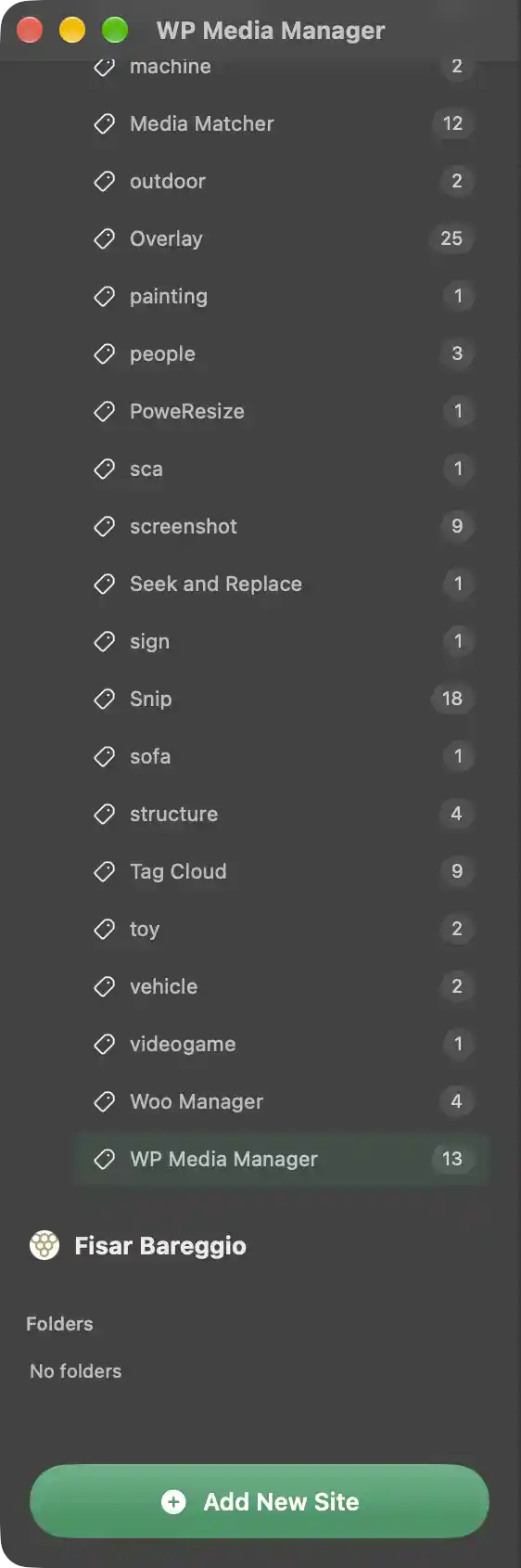
This segment of the sidebar provides tag-based filtering for the media library of the currently selected WordPress site, plus folder access and the entry point for connecting additional sites.
- Tag filter rows — Each row represents a WordPress tag associated with the active site. The leading paperclip-style glyph identifies the row as a tag entry.
- Tag name — The tag's human-readable label (for example, "Media Matcher", "Snip", "Tag Cloud"). Selecting a tag narrows the media grid to only the library items carrying that tag; selecting the currently active tag again clears the filter so all media are shown.
- Count badge — The numeric value in the rounded capsule at the right edge of each row reports how many local media items are currently associated with that tag. It gives an immediate sense of tag usage and helps distinguish heavily used tags from incidental ones.
- Active selection state — The highlighted row (shown here as "WP Media Manager" with a brighter background and an accent-tinted icon, name, and badge) indicates the tag presently applied as the grid filter. Only one tag can be active at a time.
- Site identity block — The favicon and bold name below the tag list (shown as "Fisar Bareggio") identify which configured WordPress site the tags and folders belong to. Together with the tags above, it confirms the scope of the current navigation, since tags and filter state are stored per site.
- Folders section label — The "Folders" heading introduces a separate organizational grouping for media items within the same site.
- Empty folder notice — The "No folders" text appears when the selected site has no folders defined locally. It communicates that folder-based organization is available but currently unpopulated, rather than indicating an error.
- Add New Site — Creates a new site connection. Invoking it opens the site configuration form where name, URL, username, and application password are entered and tested. Saving adds the site to the persistent site list so its media library can be browsed and its sidebar tags appear.

- Date scope — All Time: Limits the visible media items to the selected upload-date period. The active value “All Time” applies no date restriction; choosing another period narrows the grid to media uploaded within that range.
- Filters: Reveals or hides additional constraints for the media grid, including media type, resolution, and file-size ranges. Its active state determines whether those advanced narrowing options are available.
- Search: Narrows the visible library to items whose title, alternative text, or description contains the entered text, ignoring case. An empty value leaves the results unfiltered by text.
- Upload: Starts the workflow for adding local media files to the currently selected WordPress site. It opens the file-selection and upload-review flow so imported media can be processed and sent to the remote library.
- Refresh: Requests synchronization between the local media cache and the connected WordPress site. It re-fetches remote media records so additions, edits, and deletions made elsewhere are reflected in the grid.
- Synchronization status — “Synchronizing local database with remote images…”: Indicates that a refresh or synchronization is running and shows how much of the remote-library update has completed. The filled portion represents completed work; the message names the active operation.
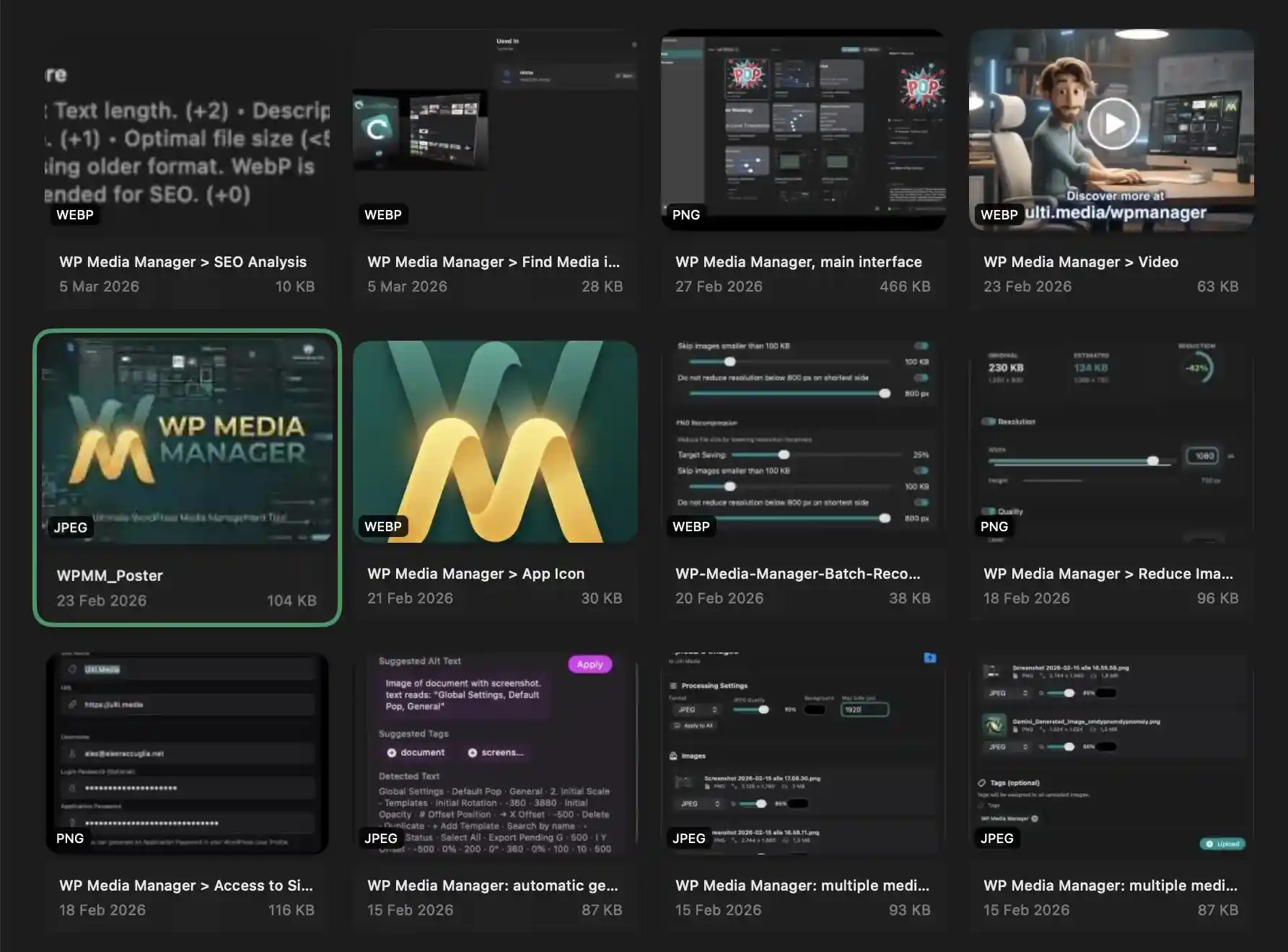
The grid presents synchronized media assets for the active WordPress site. Each item shows a preview and identifying metadata. The selected item is outlined to indicate which asset is active in the inspector and which operations will target it.
- Media preview: visually represents the asset. For images, it shows a scaled thumbnail; for videos, a playable frame; for other files, a format-specific placeholder. The preview enables quick recognition without opening the detail inspector.
- Format indicator: displays the file type (e.g., WEBP, PNG, JPEG). This identifies the media format and informs compatibility, SEO evaluation, conversion choices, and whether image-specific actions such as reduction are available.
- Title: shows the WordPress media title. It is used for search, identification in batch selections, and export reports.
- Upload date: shows when the asset was added to the media library. It supports date-range filtering, sorting, and distinguishing between versions or campaign periods.
- File size: shows the asset’s byte size in readable units. It helps identify large files for reduction, recompression, or export planning.
- Selection state: an accent-colored outline marks the active media item. Selection determines which item appears in the detail inspector, and multiple selected items use the same selection model to enable batch metadata editing, download, deletion, recompression, or AI generation.
- Grid arrangement: positions items in a responsive layout. It supports scanning, drag selection, marquee selection, and drop targets for uploads or batch files. Items can be selected individually, toggled into a multi-selection, or range-selected to operate on several assets at once.

The bottom bar summarizes the current state of the media library and exposes bulk operations for the visible results. It reports the number of items currently selected versus the total number of items matching the active filters, shows the cumulative size of the filtered set, and provides access to selection, sorting, download, orphan detection, and grid display controls.
- Date — Active sorting key that orders the visible media by upload date. The highlighted state indicates that date is the currently applied sort criterion. Selecting it switches the ordering away from size. Direction (ascending or descending) toggles on repeated activation.
- Size — Alternative sorting key that orders the visible media by file size. Activating it changes the sort basis from date to size, allowing the user to surface the largest or smallest files first.
- Selected count summary — Textual indicator reporting how many items are currently selected relative to the total number of items matching the current filter, search, and site scope (e.g., "1 selected of 13 found"). It reflects live selection state and helps the user confirm scope before acting.
- Select All (13) — Applies the current filtered set (shown as a count) as the active selection, so bulk actions such as download or orphan detection operate on every currently visible item. When the selection already covers the filtered set, the corresponding action reverts to clearing the selection.
- Cumulative size value — Displays the total disk footprint of the currently filtered media items, expressed in human-readable units (e.g., "1,6 MB"). It gives an immediate sense of storage impact before downloading, exporting, or reducing files.
- Download — Downloads the selected media items to a user-chosen folder on disk. It is the primary bulk export action for the current selection. While a download is running, an inline progress indication replaces or accompanies the action.
- Orphans — Starts a check that determines which of the selected media items are not referenced by any post, page, or product on the connected WordPress site. Results replace the current selection with the found orphan items so the user can review or delete them. Progress is reported inline while the check runs.
- Grid display options — The dotted grid affordance opens a popover for adjusting how the media library is presented: the size of the thumbnails in the grid and which file categories (images, videos, PDFs, other files) are visible. These preferences persist across sessions and are scoped per site.
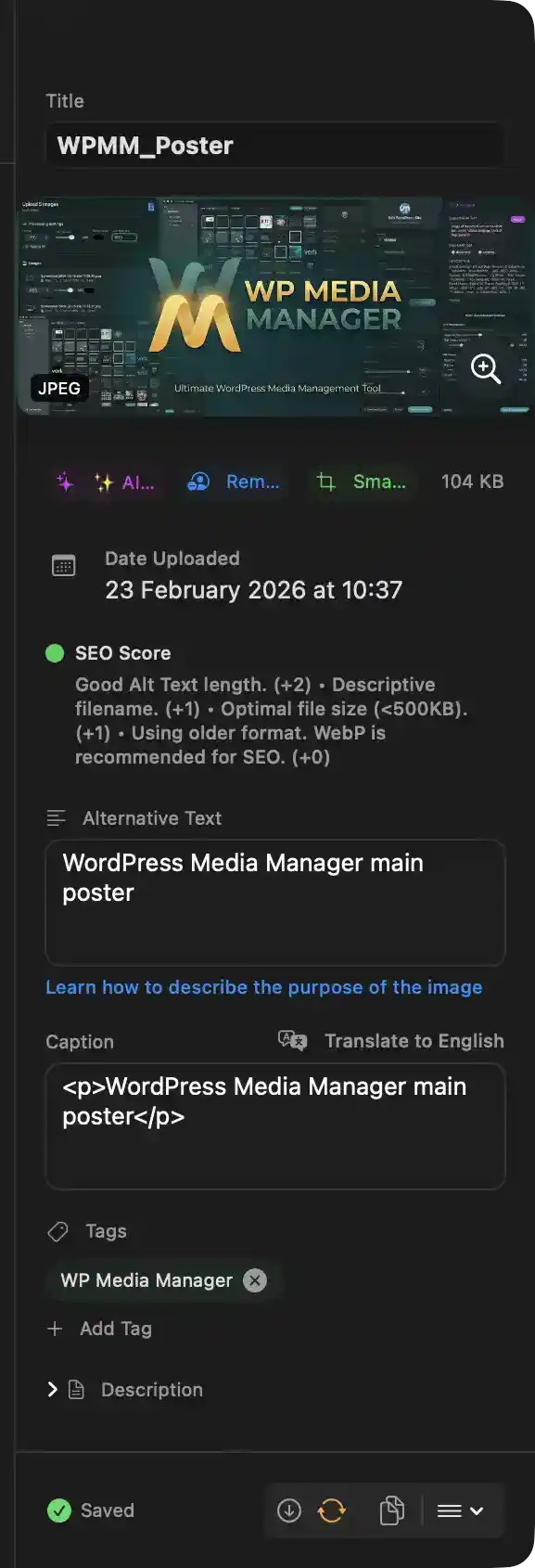
This panel edits metadata, evaluates SEO, and runs file operations for one selected WordPress media item. It is the right-hand inspector in the main workspace.
- Title — Shows the current media title and allows editing. Changing it updates the WordPress title when saved.
- Media preview — Displays the selected asset. The JPEG badge identifies the file format.
- Magnifying-glass — Opens a dedicated image viewer for the selected media, enabling zoom, pan, and metadata overlays.
- AI Suggest — Runs local AI metadata generation to propose title, alternative text, caption, description, tags, and SEO filename.
- Remove BG — Starts background removal on the image when supported, producing a subject-only variant for replacement or upload.
- Smart Crop — Starts an attention-based crop around the most salient subject, using a target aspect ratio.
- 104 KB — Displays the current file size, which informs SEO scoring and optimization decisions.
- Date Uploaded — Shows the WordPress upload date and time. Used for sorting, date filters, and export organization.
- SEO Score — A green indicator means optimized. The details explain the evaluation: good ALT text length, descriptive filename, optimal file size, and a recommendation to use WebP for better SEO.
- Alternative Text — Editable ALT attribute value for accessibility and SEO. The current value is “WordPress Media Manager main poster”. Saving updates the remote media metadata.
- Learn how to describe the purpose of the image — Opens guidance for writing effective alternative text.
- Caption — Editable caption content. The current value contains HTML:
<p>WordPress Media Manager main poster</p>. Saving updates the media caption. - Translate to English — Translates the caption into English using on-device translation and replaces the caption with the translated result.
- Tags — Shows assigned tags. The “WP Media Manager” entry includes a removal control. + Add Tag opens tag selection or creation. Tag changes are saved immediately.
- Description — A collapsed section that expands into a long-form description editor. Its content is stored with the media item and included in reports.
- Saved — Indicates there are no unsaved metadata changes. When changes exist, a Save control becomes available with the Command-S shortcut.
- Download — Downloads the original media file to a chosen folder.
- Replace — Opens a file picker to replace the media file while preserving its WordPress media identity. The replacement must match the original file extension.
- Copy URL — Copies the media source URL to the system clipboard and shows a brief confirmation.
- More options — Opens secondary commands: Find in WordPress Site, Reduce File Size for images, and Delete Media. Deletion requires confirmation and permanently removes the item from WordPress and local storage.
Filters
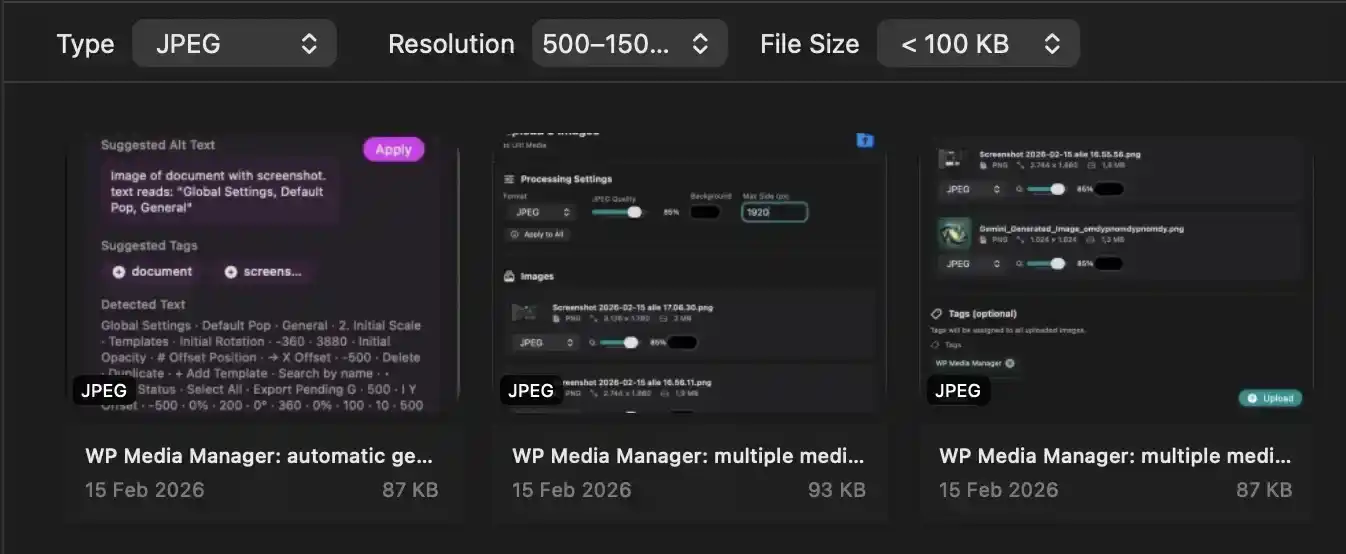
Displays a filtered set of media items from the selected WordPress site, with options for narrowing results by file type, resolution, and size.
- Type — Sets the file format filter for the grid. Currently set to JPEG, so only JPEG items are listed.
- Resolution — Sets the pixel dimension filter. Currently set to 500–1500..., so only images whose longest side is between 500 and 1500 pixels are shown.
- File Size — Sets the file weight filter. Currently set to < 100 KB, so only files smaller than 100 KB are displayed.
The grid below shows each matching media item as a tile:
- Thumbnail preview of the file.
- File type badge in the lower-left corner (e.g., JPEG).
- Title, upload date, and file size shown beneath the thumbnail.
The grid area is a drag-and-drop target. Accepted files:
.wpmmbatchbatch files: start a batch import for the current site.- Image files: start the normal upload flow.
Dropping any other file type has no effect.
Disolay
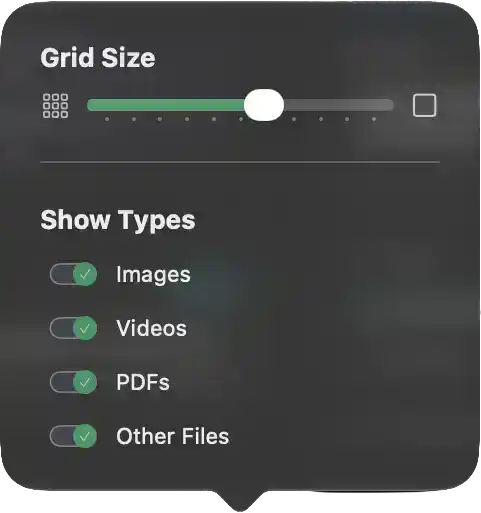
Controls the visual density of the media library grid and which media categories appear in it. Changes apply immediately to the displayed library for the currently selected site, and the chosen values are remembered for future sessions.
- Grid Size — Sets the width of each thumbnail cell in the grid, from 50 to 300 points, in fixed increments. Smaller values fit more items per row for rapid scanning; larger values give each preview more prominence for visual review. The small tick marks indicate the discrete stopping points along the range.
- Images — Determines whether image files are included in the grid. Disabling this hides all image media, useful when reviewing a library that also contains documents or video assets.
- Videos — Determines whether video files are included in the grid.
- PDFs — Determines whether PDF documents are included in the grid.
- Other Files — Determines whether any remaining file categories not covered by the options above are included in the grid.
Site
Setup
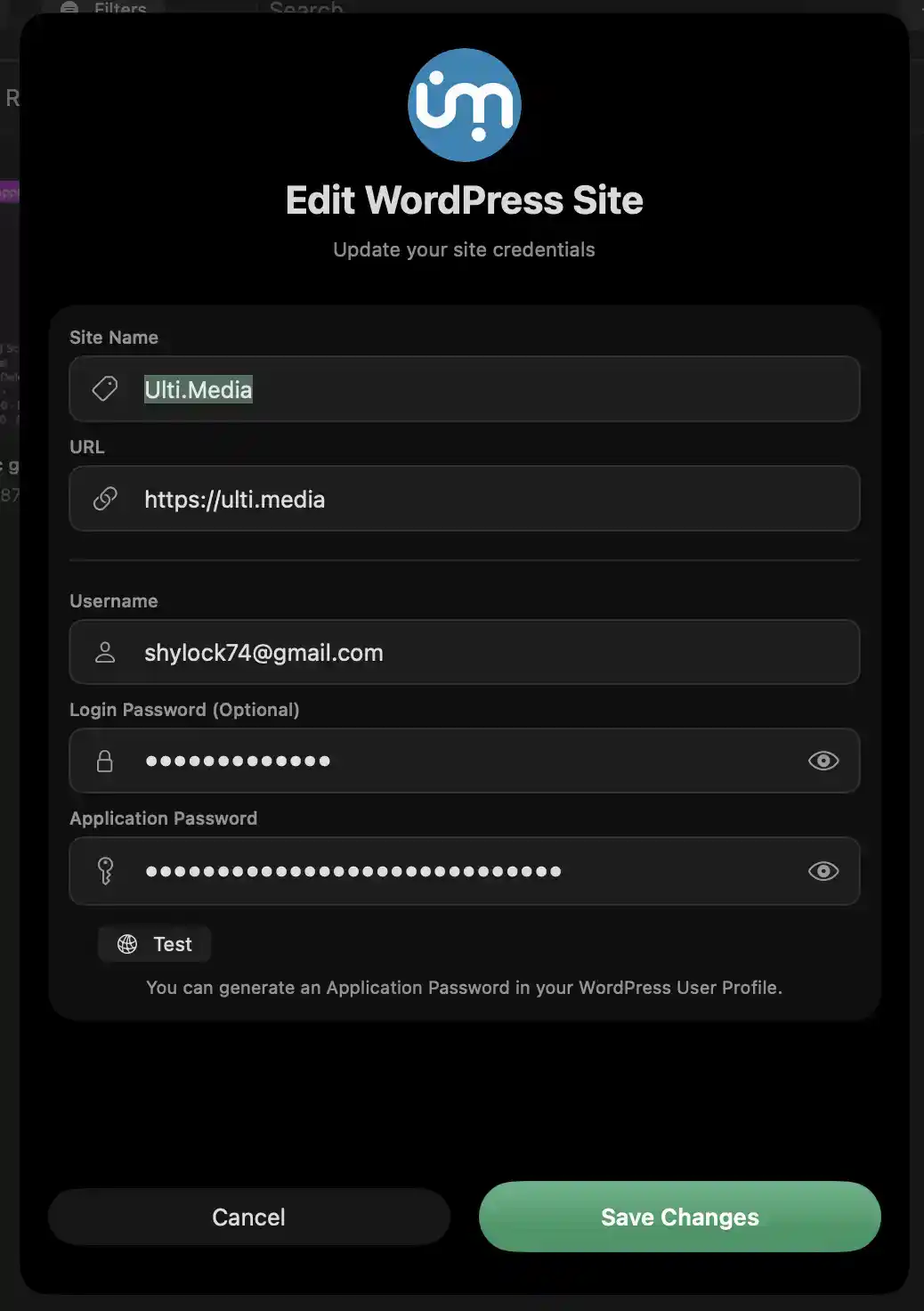
This sheet updates the connection details for a configured WordPress site. It shows the current credentials and allows editing them before saving.
- Site Name — Displays the label used to identify this site throughout the app. Editing it changes the name shown in site lists and the sidebar.
- URL — The base address of the WordPress installation. It must be a valid web address; the app trims whitespace, adds https:// if missing, and removes trailing slashes before testing or saving.
- Username — The WordPress account name used to authenticate REST API requests.
- Login Password (Optional) — An optional password stored with the site configuration. It is not required for the application-password-based API connection. The adjacent visibility control shows or hides the entered value.
- Application Password — The credential used for authenticated WordPress REST API access. Spaces are removed automatically. Required for saving and testing. The adjacent visibility control shows or hides the entered value.
- Test — Attempts a live connection to the site using the entered URL, username, and application password. On success, a green confirmation appears; on failure, a red message shows the error, with full details available on hover.
- Helper text — Explains that an Application Password can be generated in the WordPress user profile.