Main UI
Products
Store Sidebar
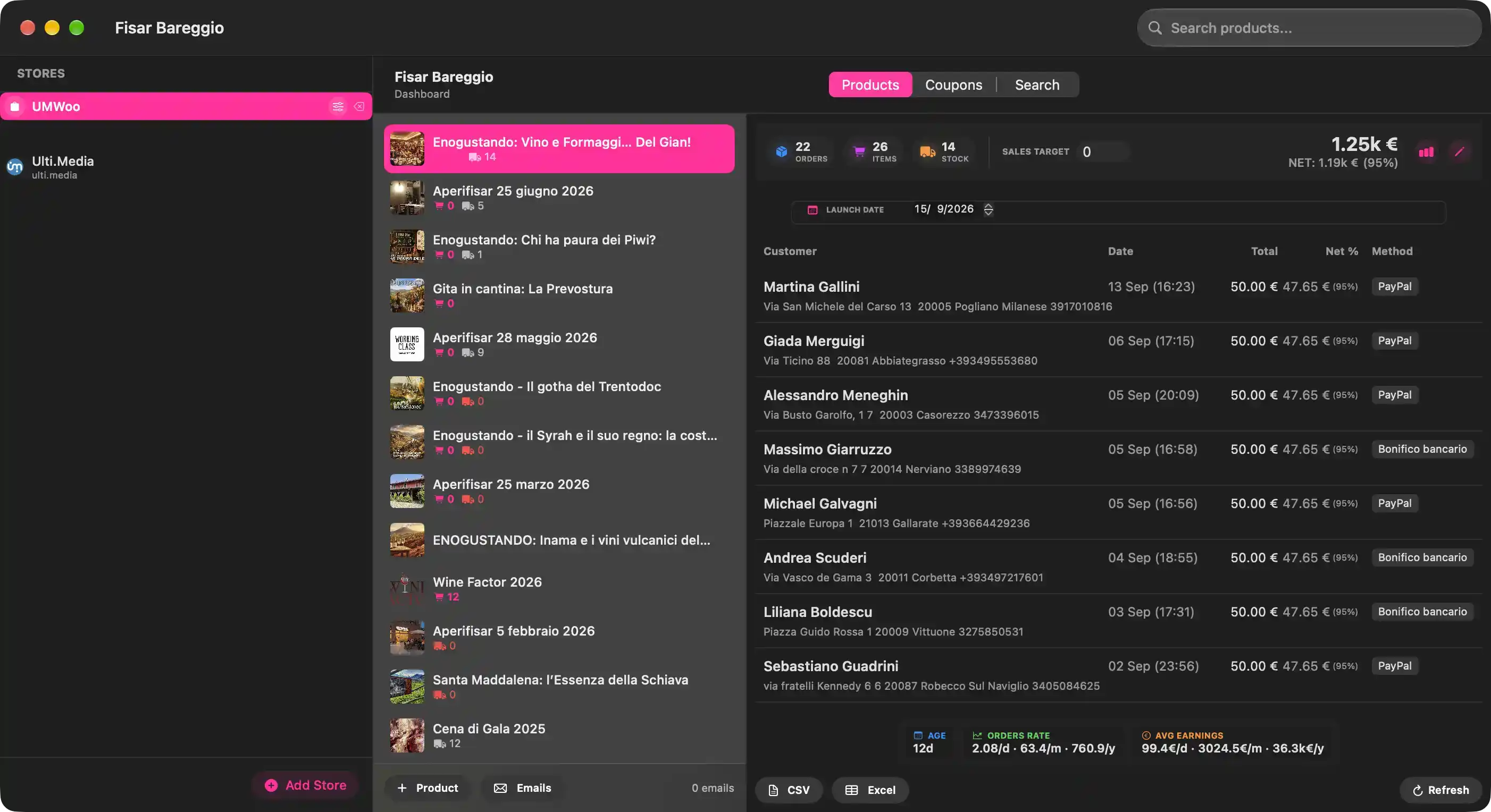
- STORES labels the list of configured WooCommerce connections.
- UMWoo — the currently active store, highlighted. Selecting a row switches every dashboard panel to that store's data.
- Ulti.Media (ulti.media) — a second configured store. The favicon and host line identify it at a glance.
- Hovering a row reveals two actions: one opens that store's configuration sheet (title, server URL, WooCommerce consumer key/secret, WordPress application credentials), the other removes the store from the list.
- Add Store appends a new, uniquely named store, selects it, and immediately opens its configuration sheet.
- A small spinner appears beside a store's name while that store is downloading its product catalogue.
Dashboard Header
- Displays the active store's title and the Dashboard caption.
- Products / Coupons / Search switch the main area between the product catalogue, the coupon manager, and the customer email lookup. The selected area is highlighted.
Product List
- Search products… filters the catalogue by product name as text is entered; matching is a case-insensitive substring of the name.
- Each row shows the product thumbnail (or a neutral placeholder when no image exists), the product name, and two inline figures: units sold (cart icon) and stock on hand (truck icon). Stock counts render in red at zero or below, signalling an out-of-stock condition.
- When a sales target is set for a product, a small progress ring next to the sold count shows how far that target has been reached.
- Selecting a row loads that product's orders, analytics, and metadata into the detail pane.
- Product opens a sheet for creating a new product (title, image, descriptions, price, virtual flag, status, inventory).
- Emails starts a background collection of every customer email address on the store.
- The 0 emails counter reports how many addresses have been gathered so far for the active store.
- While the catalogue is being downloaded and no products are cached yet, the list is covered by a translucent loading indicator so previously loaded rows are never blanked out.
Selected Product Overview
Metric Cards
- ORDERS — number of orders for this product, excluding refunded and cancelled ones.
- ITEMS — total units purchased across all orders, including refunded and cancelled ones.
- STOCK — available inventory, taken from the store when managed there and otherwise from the locally cached quantity. Values of zero or less are shown in red.
Sales Target
- A numeric goal of units to sell for this product. Setting a value above zero activates the progress ring in this header and in the product list row, computed as sold units divided by the target, capped at 100%.
- The target also drives the Goal Projection figure, a projected completion date derived from the current weighted sales rate.
Revenue Summary
- The gross total for the product, formatted with magnitude-aware scaling (whole euros below one thousand, thousands with a k suffix above).
- NET shows the net total after refunds and, in parentheses, the net share of the gross as a percentage.
Header Actions
- The chart action toggles the analytics panel, which offers 28d, Months, and Years aggregations of sales, each a bar chart with a dashed average line and formatted axis labels.
- The pencil action opens the product editor for the selected product.
Launch Date
- Records the product's launch or event date. It is the reference point for every rate calculation — product age, daily/monthly/yearly order rate, average earnings, and goal projection.
- When no date is stored, the oldest known order is used instead; the row is only rendered once a metadata record exists for the product.
- Changing the date persists the record locally after a short debounce.
Orders Table
- Customer — billing name, with the billing address printed underneath; refunded and cancelled orders appear in orange text over a tinted background.
- Date — order creation date and time.
- Total — gross order amount, formatted with the same magnitude-aware currency rules.
- Net % — net amount after refunds plus its share of the gross.
- Method — payment method reported by the store, as a compact badge (for example PayPal or Bonifico bancario).
- When no orders exist and no download is running, an empty-state message is shown instead of the table.
- Refreshes happen automatically every five minutes; refunded and cancelled orders are excluded from the header metrics, the statistics strip, and the exported data.
Performance Summary
- AGE — time elapsed since the launch date (or the oldest order), expressed in years, months, and days; shows New when no date is known and Today on the first day.
- ORDERS RATE — weighted daily order rate, shown per day, per month, and per year. The weighting is 50% over the last 30 days, 30% over the last 365 days, and 20% over the lifetime since launch, each window normalised by its active day count.
- AVG EARNINGS — the same weighting applied to net revenue rather than unit counts.
- GOAL PROJECTION — the projected date on which the sales target will be reached. It is hidden when no target is set, the target is already met, the rate is negligible, or the estimate exceeds ten years.
Export and Refresh
- CSV writes the order rows listed above to a comma-separated file. The export carries a progressive counter, quantity, transaction ID, customer name, date, total, payment method, and a refund/cancellation marker, followed by a totals row. Refunded and cancelled orders contribute a zero counter and zero quantity. The file is offered through a system save sheet and then opened in Numbers.
- Excel writes the same columns to a workbook with one sheet named after the product, without the trailing totals row, and reveals the saved file in the Finder.
- Refresh re-downloads the order list for the selected product. An inline progress indicator replaces the refresh glyph while the download is in flight, and a corner-pinned loader keeps existing rows visible rather than clearing them.
Transactions
Store Selection and Management
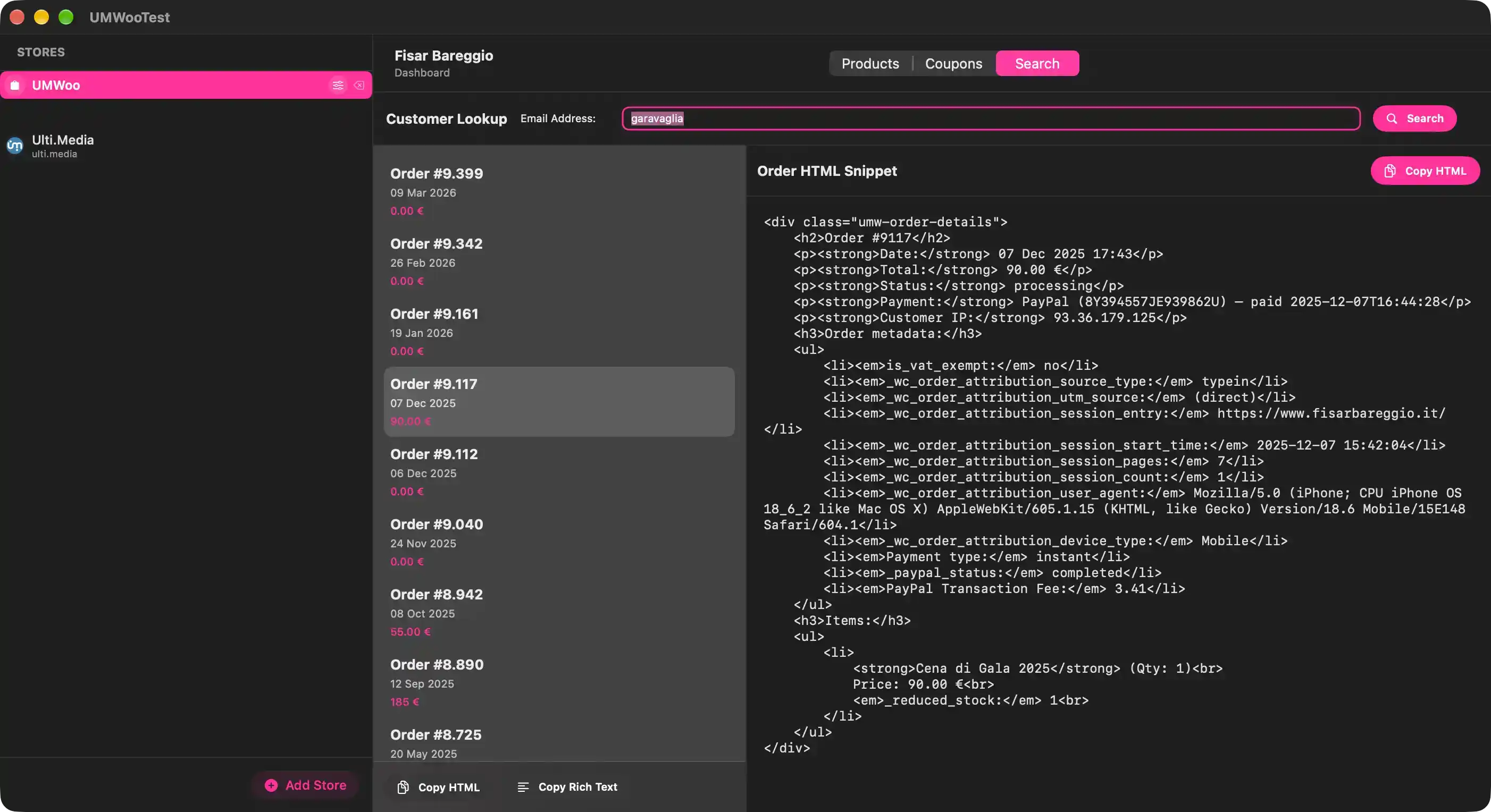
- The store entries under STORES list the configured WooCommerce stores. Selecting an entry makes it the active store for every dashboard feature; the selected store is highlighted and its name appears in the main header.
- Add Store creates a new store entry, selects it, and opens its configuration so its connection details can be provided.
Dashboard Sections
- Products switches the dashboard to product browsing, product metrics, order history, and export options for the active store.
- Coupons switches the dashboard to coupon listing, detail, creation, editing, and deletion for the active store.
- Search switches the dashboard to customer email lookup. The currently selected section is Search.
Customer Email Lookup
- Email Address holds the customer email to search for. The value is sent to WooCommerce's order search endpoint.
- Search initiates the lookup using the email address. Results replace the current list when the request succeeds.
- Inline error text reports invalid server URLs, network failures, HTTP errors, or decoding failures.
- Progress feedback appears while the search request is running; the search action is unavailable during that time.
Search Results
- The results list displays orders matching the email query. Each row summarizes an order with its number, creation date, and total.
- Selecting a result loads that order's HTML representation into the detail pane. The selected row is highlighted.
- Copy HTML (list footer) copies the combined HTML of every current search result to the pasteboard, ordered from oldest to newest, separated by a horizontal rule.
- Copy Rich Text (list footer) copies all current results as formatted text, replacing every font run with a Montserrat family font while preserving size and traits.
Selected Order Detail
- Order HTML Snippet shows the HTML generated for the selected order: order number, date, total, status, payment method with transaction ID and paid date, customer IP, customer note, order metadata, line items, item metadata, and serial keys.
- Copy HTML (detail header) copies only the currently displayed order's HTML to the pasteboard.
Products
Editor
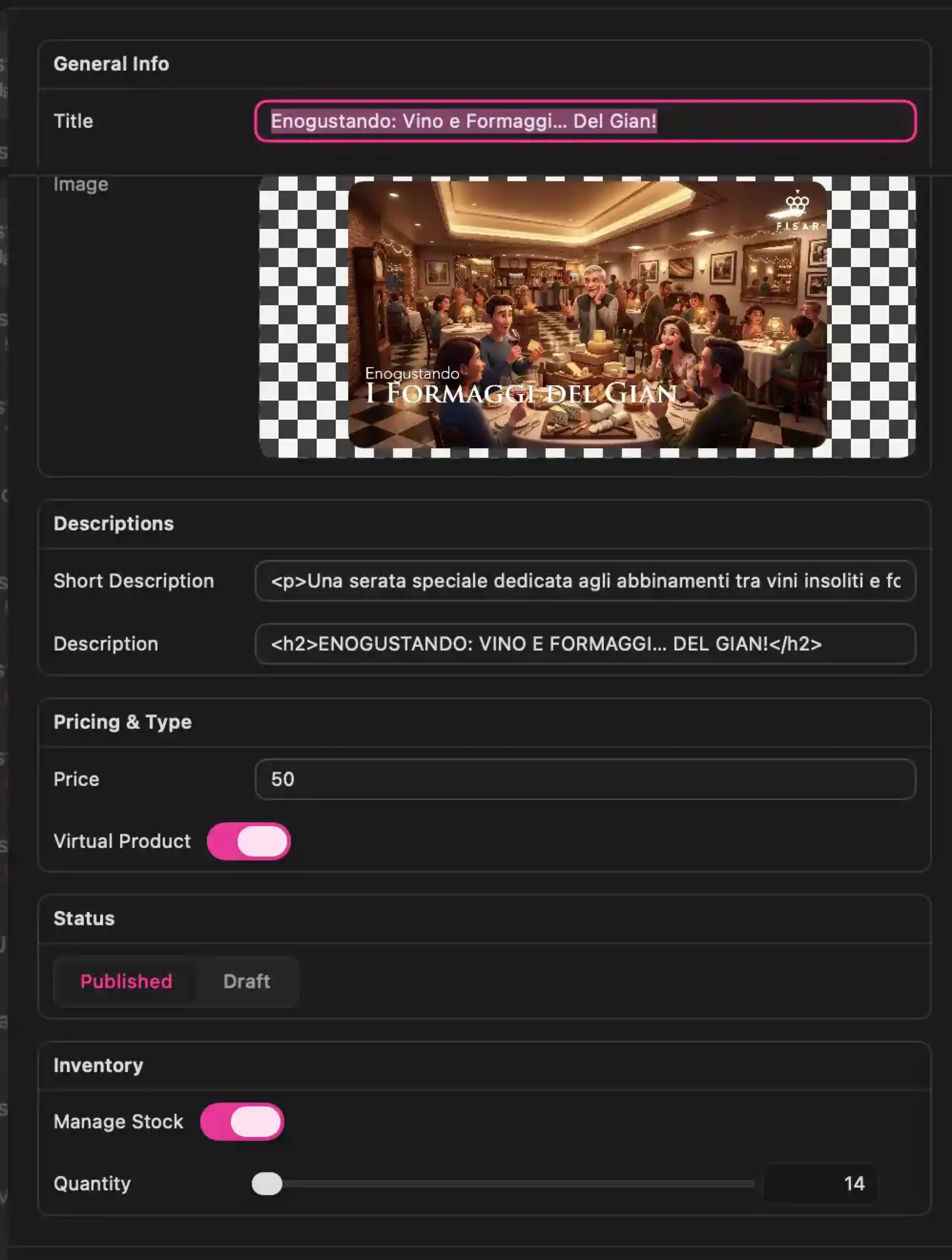
Element 1
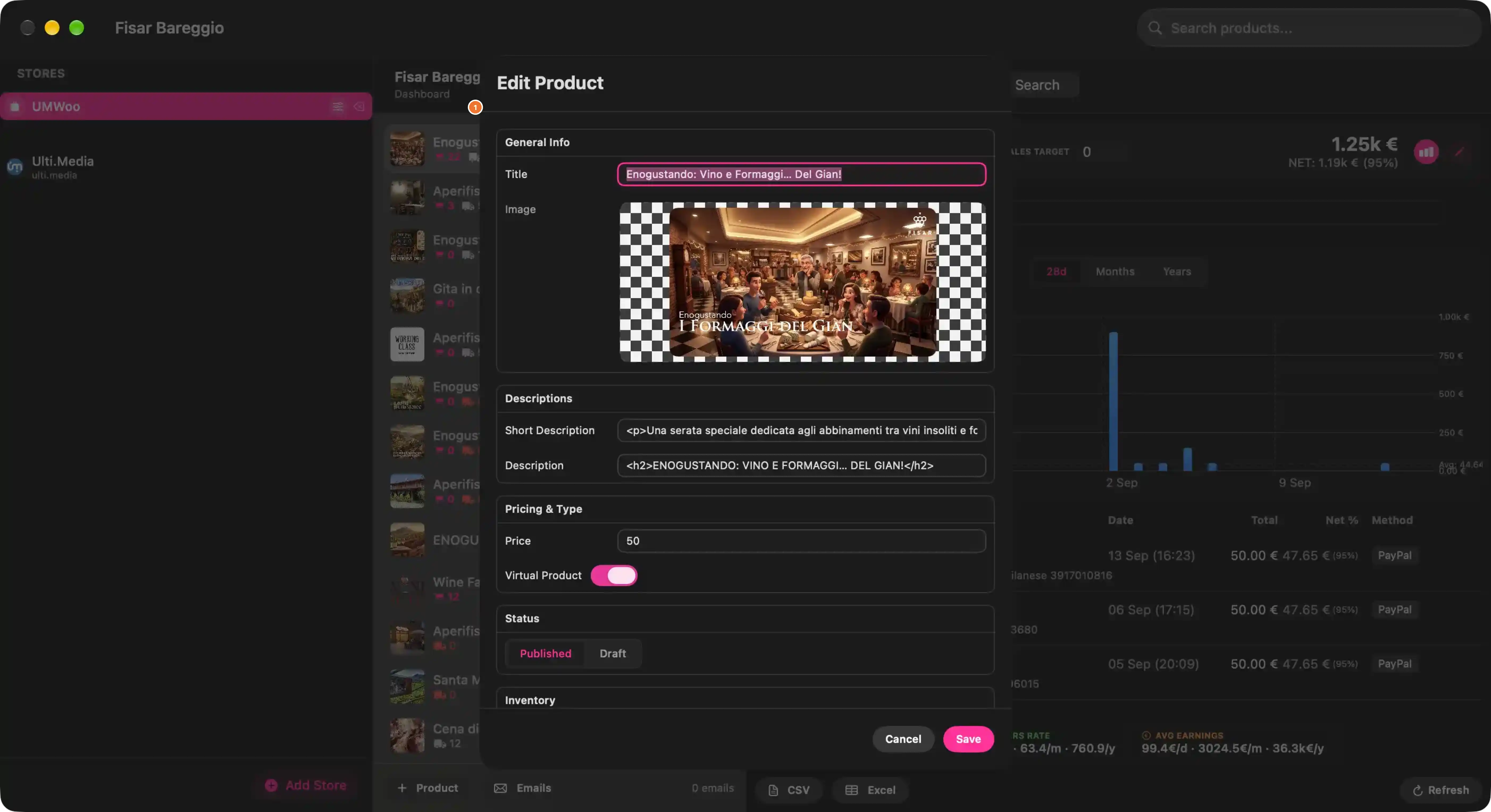
- Title — Defines the product’s display name throughout the selected store and dashboard. It is the primary label in product lists, order rows, exports, and detail views. The value shown is a descriptive product title; leaving it empty prevents the product from being saved.
- Image — Holds the product’s featured image. The checkerboard-bordered preview shows the current or newly selected image and will replace the storefront/listing image when the product is saved.
- Short Description — Provides a concise product summary for the selected store item. It supports HTML markup, so the content is rendered as formatted text wherever the store uses a brief description. The current value contains an HTML paragraph.
- Description — Provides the full product description. It also accepts HTML markup and becomes the main long-form content associated with the product page. The current value contains an HTML heading.
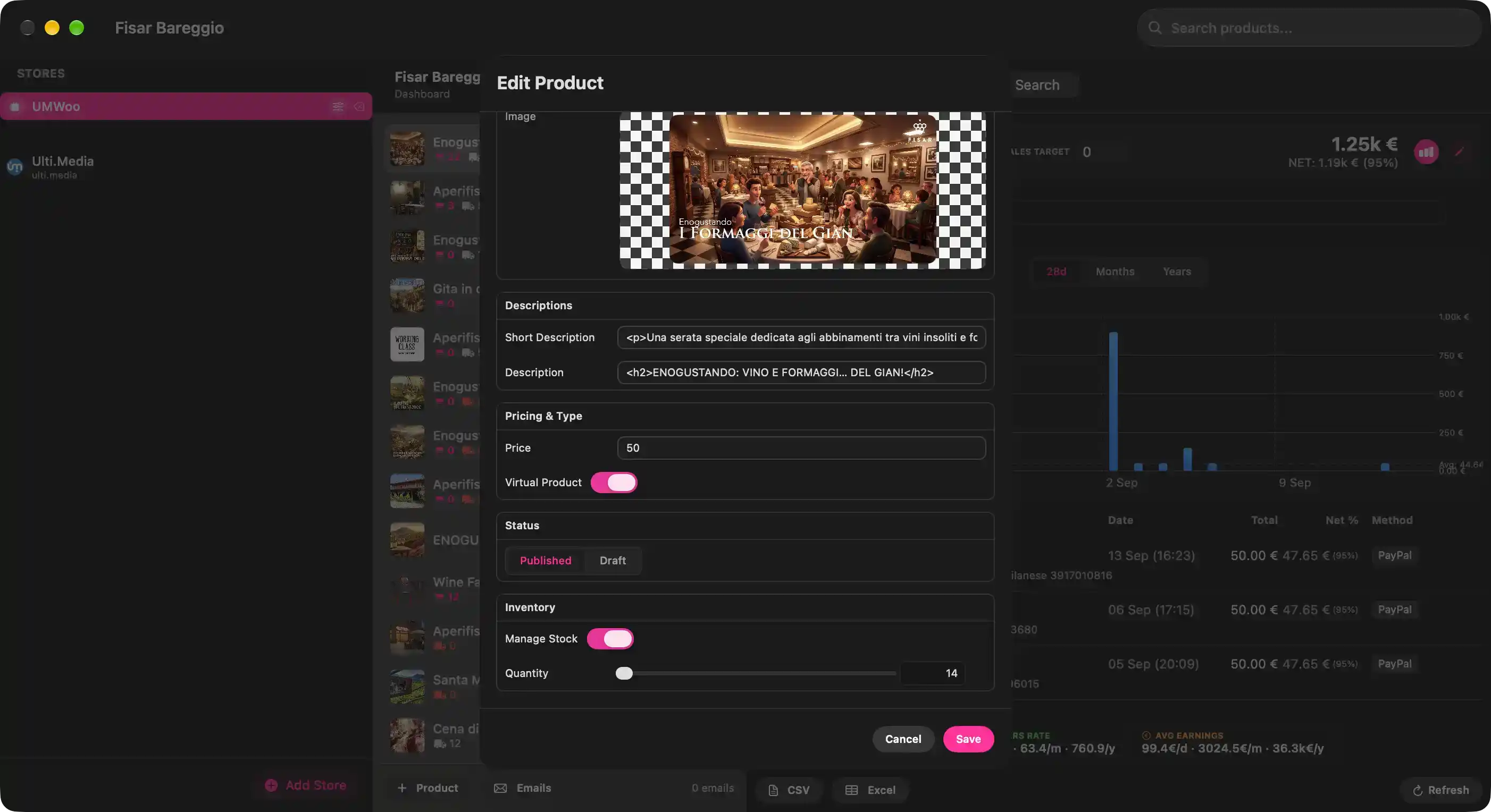
- Price — Defines the product’s selling price. This amount feeds order totals, revenue metrics, exports, and per-product financial calculations in the dashboard. The current value is 50.
- Virtual Product — Indicates that the product does not require physical fulfillment. When enabled, checkout and shipping behavior treat it as non-shippable; the current state is enabled.
- Published / Draft — Sets the product’s storefront visibility. Published makes the product available to customers; Draft keeps it hidden for administrative preparation. Published is currently selected.
- Manage Stock — Enables inventory tracking for the product. When enabled, stock quantity is written to the product record and becomes part of availability indicators; the current state is enabled.
- Quantity — Sets the number of units available for the product. It is meaningful when inventory tracking is enabled; the value drives stock displays and low/out-of-stock cues. The current value is 14.