

Permissions
Permissions
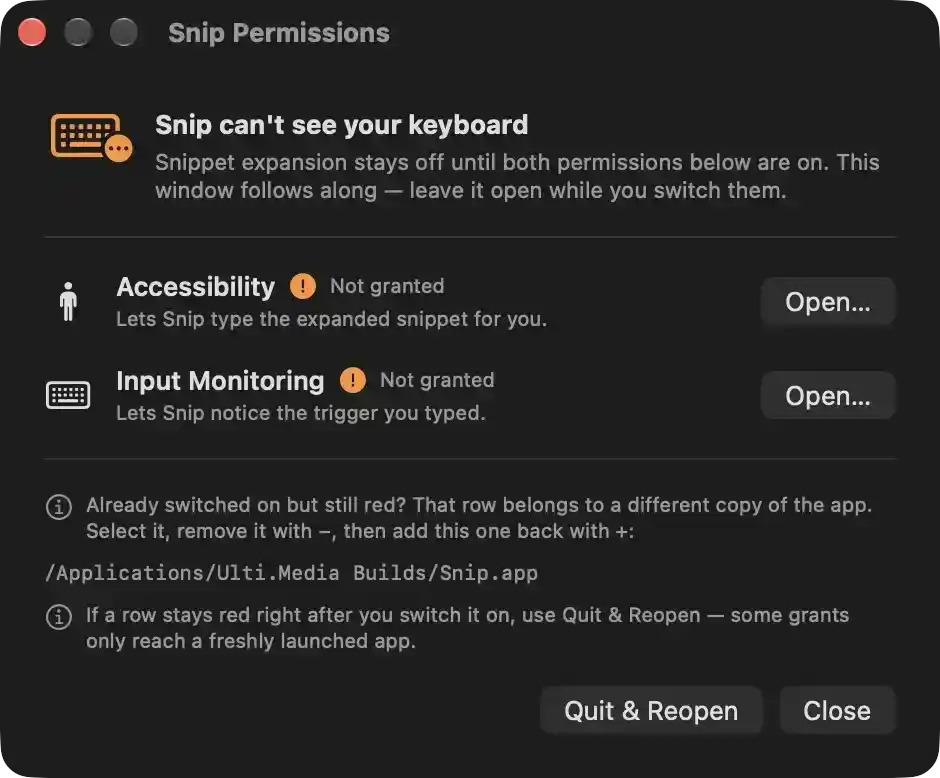
Snip needs two macOS privacy grants before snippet expansion can work. Until both are enabled, the app cannot detect typed triggers or insert expanded content. This window stays visible and updates live while the grants are switched on in System Settings.
- Accessibility — Reports as Not granted. This grant lets Snip type the expanded snippet into the frontmost application on the user's behalf. The accompanying Open… action deep-links to the corresponding System Settings privacy pane so the user can enable it.
- Input Monitoring — Reports as Not granted. This grant lets Snip notice the trigger sequence the user types anywhere in the system, which is what activates snippets outside the app. The accompanying Open… action deep-links to the corresponding System Settings privacy pane so the user can enable it.
Supporting notes shown below the status rows:
- An informational note explains that a permission row which is already switched on yet still reports as not granted belongs to a different copy of the application; the affected entry should be removed with the minus control and this build re-added with the plus control.
- The exact bundle path of the running copy is displayed so it can be matched against (or distinguished from) the entries listed in System Settings. The path text is selectable for copying.
- A second informational note explains that a grant may not reach the currently running process, in which case restarting via Quit & Reopen is required.
- Quit & Reopen — Relaunches Snip as a new process instance and terminates the current one, so newly granted permissions are picked up and keyboard monitoring can start.
Main UI
Main UI
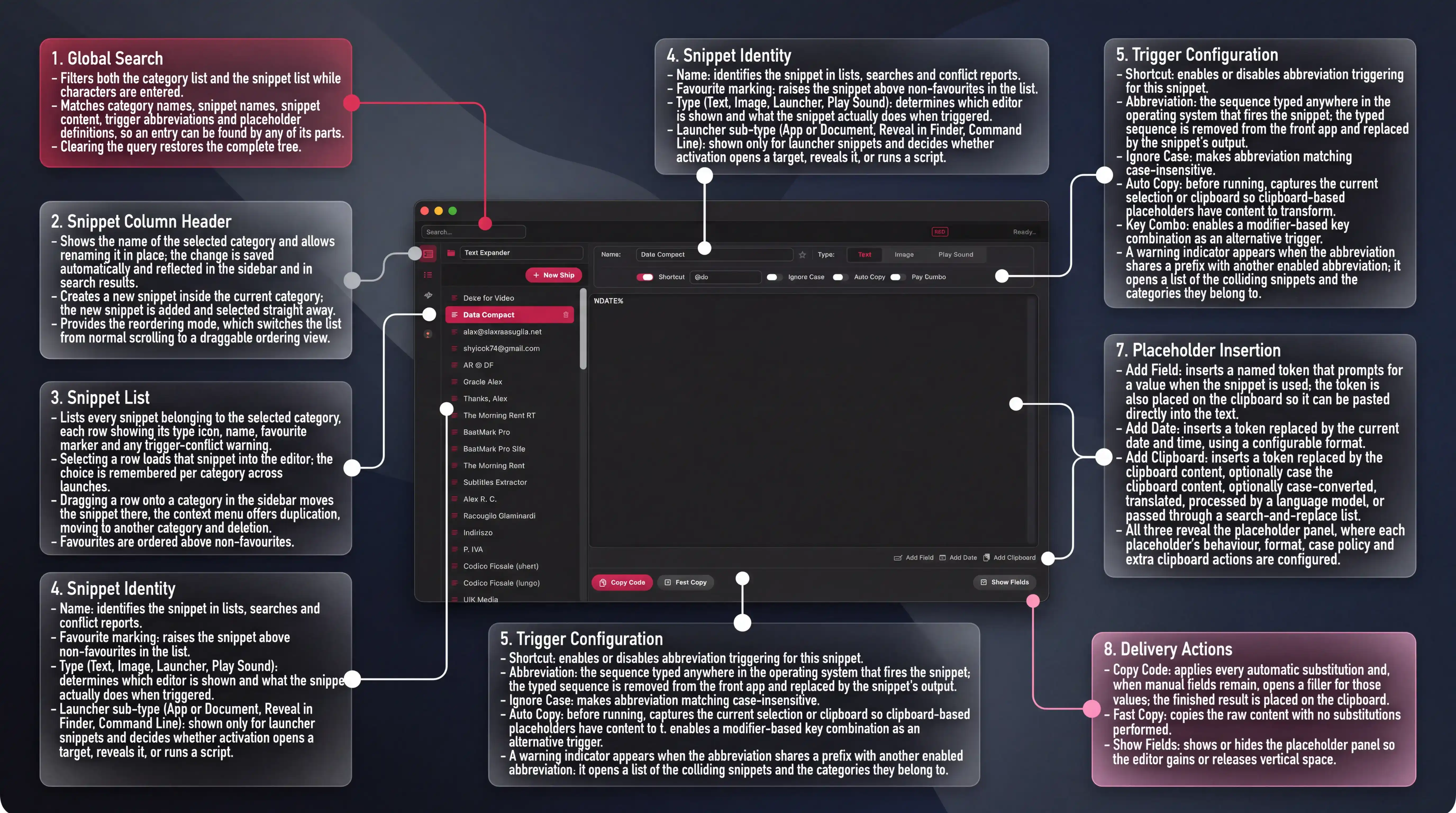
The window is the workspace where the snippet library is browsed, authored and tested. It is divided into eight annotated areas: global search, the header of the snippet column, the snippet list, the snippet's identity, its trigger configuration, the content editor, the placeholder insertion tools, and the delivery actions. The snippet currently open is a text snippet whose content is the date placeholder.
1. Global Search
- Filters both the category list and the snippet list while characters are entered.
- Matches category names, snippet names, snippet content, trigger abbreviations and placeholder definitions, so an entry can be found by any of its parts.
- Clearing the query restores the complete tree.
2. Snippet Column Header
- Shows the name of the selected category and allows renaming it in place; the change is saved automatically and reflected in the sidebar and in search results.
- Creates a new snippet inside the current category; the new snippet is added and selected straight away.
- Provides the reordering mode, which switches the list from normal scrolling to a draggable ordering view.
3. Snippet List
- Lists every snippet belonging to the selected category, each row showing its type icon, name, favourite marker and any trigger-conflict warning.
- Selecting a row loads that snippet into the editor; the choice is remembered per category across launches.
- Dragging a row onto a category in the sidebar moves the snippet there; the context menu offers duplication, moving to another category and deletion.
- Favourites are ordered above non-favourites.
4. Snippet Identity
- Name: identifies the snippet in lists, searches and conflict reports.
- Favourite marking: raises the snippet above non-favourites in the list.
- Type (Text, Image, Launcher, Play Sound): determines which editor is shown and what the snippet actually does when triggered.
- Launcher sub-type (App or Document, Reveal in Finder, Command Line): shown only for launcher snippets and decides whether activation opens a target, reveals it, or runs a script.
5. Trigger Configuration
- Shortcut: enables or disables abbreviation triggering for this snippet.
- Abbreviation: the sequence typed anywhere in the operating system that fires the snippet; the typed sequence is removed from the front app and replaced by the snippet's output.
- Ignore Case: makes abbreviation matching case-insensitive.
- Auto Copy: before running, captures the current selection or clipboard so clipboard-based placeholders have content to transform.
- Key Combo: enables a modifier-based key combination as an alternative trigger.
- A warning indicator appears when the abbreviation shares a prefix with another enabled abbreviation; it opens a list of the colliding snippets and the categories they belong to.
6. Content Editor
- Holds the payload that is pasted, including any placeholder tokens such as the date token shown here.
- For command-line launcher snippets this same area holds the shell script instead of text.
- Edits are persisted automatically in the background.
7. Placeholder Insertion
- Add Field: inserts a named token that prompts for a value when the snippet is used; the token is also placed on the clipboard so it can be pasted directly into the text.
- Add Date: inserts a token replaced by the current date and time, using a configurable format.
- Add Clipboard: inserts a token replaced by the clipboard content, optionally case-converted, translated, processed by a language model, or passed through a search-and-replace list.
- All three reveal the placeholder panel, where each placeholder's behaviour, format, case policy and extra clipboard actions are configured.
8. Delivery Actions
- Copy Code: applies every automatic substitution and, when manual fields remain, opens a filler for those values; the finished result is placed on the clipboard.
- Fast Copy: copies the raw content with no substitutions performed.
- Show Fields: shows or hides the placeholder panel so the editor gains or releases vertical space.

- Filters the category list and the snippet list in real time as characters are entered, narrowing both columns simultaneously so the matching items remain visible while everything else is hidden from the lists.
- Matches against category names and, for each snippet, against its name, its text or script content, its abbreviation trigger, and all of its placeholder titles and substitution tokens, so a search can locate a snippet by the value it produces rather than only by the label it was given.
- An empty query disables filtering and restores the complete tree of categories and snippets, including favourites-first ordering within each category.
- Because filtering also gates the editing panel, the detail area falls back to its empty prompt whenever the currently selected snippet does not satisfy the active query; this deliberately discourages modifying a snippet that is not part of the current result set.
- The query is transient: it lives only for the current session and is discarded when the application quits, leaving no filter applied on the next launch.
- Clearing the entered text immediately removes all filtering, returning every category and snippet to view.
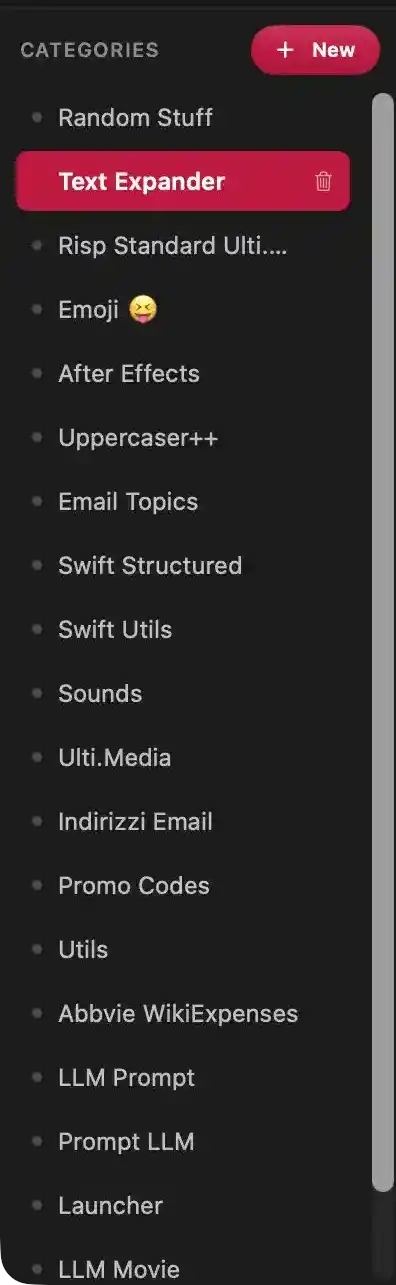
The category sidebar organizes snippets into named groups. The active category determines which snippets appear in the adjacent snippet list and editor. Creating, selecting, or deleting a category changes the snippet workspace immediately.
- Categories heading: Identifies this column as the category-level navigation area.
- Category entries: Each named row represents a category that can contain snippets. Choosing a row makes that category active, updating the snippet list and editor to show its contents.
- Active category highlight: The emphasized row identifies the category currently being viewed and edited. It also exposes category-level management actions.
- New: Initiates creation of a new category. After a name is provided, the category is added to the list and becomes selected for immediate snippet creation.
- Delete: Removes the currently selected category from the workspace. Its snippets are no longer shown under that category, and the selection clears or moves to another category.
- Scroll area: Indicates that additional categories exist beyond the visible region. Scrolling reveals more category rows.
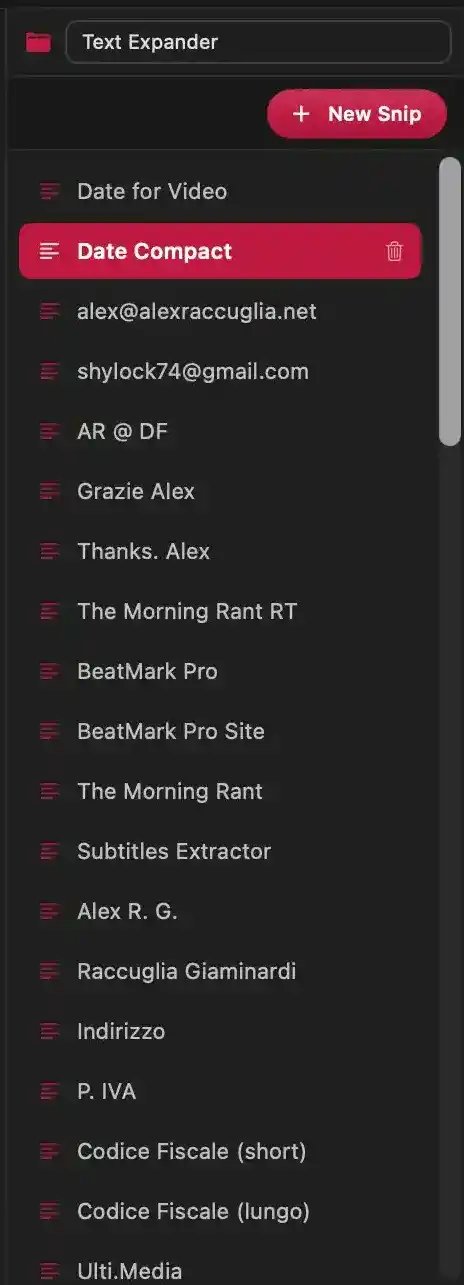
This segment is the second column of the Snip workspace. It presents the complete inventory of snippets belonging to the category currently open in the editor, and acts as the entry point for creating, selecting, organising and removing them.
- The header area names the active category and shows a folder glyph. The name is directly editable: changing it renames the category everywhere, including search results and conflict reports.
- New Snip creates a fresh text snippet inside the currently displayed category. A prompt asks for its name first; once confirmed, the new snippet is added at the end of the collection and immediately becomes the active selection so it can be configured in the editor.
- Each snippet entry shows a leading glyph indicating its content kind — aligned text for text snippets, picture for images, terminal for launchers, speaker for sounds — followed by the snippet name. The name is the primary human-readable identifier used by search and by the shortcut-conflict report.
- Selecting an entry makes it the active snippet and loads its full configuration into the editor pane to the right. The selection is remembered per category, so returning to a category restores the last snippet worked on.
- The active entry is rendered in the accent colour with emphasised lettering, making the current editing target unambiguous.
- A deletion action appears on an entry while it is hovered or while it is the active selection. Invoking it removes that snippet from the category and, if it was the active one, clears the editor back to its empty state. Removal is deferred until the store is next pruned, so it is not an irreversible immediate destruction.
- Entries can be dragged out of this column: dropping one onto a category in the sidebar relocates it to that category, moving both its content and its trigger configuration.
- A shortcut conflict indicator appears on entries whose abbreviation clashes with another enabled abbreviation elsewhere in the store, allowing problems to be spotted without opening each snippet. A star marks snippets flagged as favourites, which are sorted ahead of the remaining entries.
- The vertical indicator at the right edge shows that the collection extends beyond the visible area; further entries are reached by scrolling.
The entries are filtered live by the search query entered in the top bar, and hidden or already-deleted snippets never appear here.

- The accent-outlined REC marker signifies that Snip's global keystroke listener is active and is buffering characters typed anywhere in macOS for trigger detection.
- The monospaced preview beside it displays the live rolling buffer of recently typed characters that are currently being evaluated against enabled abbreviations, so the user can verify exactly what the background agent is processing.
- When the buffer is empty — after two seconds of inactivity, after a trigger fires, or before any typing occurs — the preview reads Ready… instead of characters.
- The preview is limited to a fixed width and truncates from the beginning, keeping the most recent characters visible; the underlying buffer itself is capped at 100 characters for stability.
- Visibility is governed by the "Show Keylogger" preference in General settings; when that preference is off, no monitoring status is shown in the top bar.
- Rendering is isolated to this region so each incoming character refreshes only the preview rather than the surrounding bar, keeping typing uninterrupted.

This portion of the editor defines what a snippet is called, what kind of payload it carries, and how it is invoked globally. Changes here alter the snippet's behaviour throughout the application — in lists, search results, conflict detection, and the cross-application triggering pipeline.
- Name — "Date Compact": The snippet's displayed identifier across the library, search results, shortcut-conflict warnings, and the placeholder-filling window. Editing it renames the snippet everywhere it is referenced and schedules persistence of the change.
- Favourite marker: Flags the snippet as a favourite. Favourited snippets are ordered ahead of non-favourited ones in the snippet list, giving quick access to frequently used entries.
- Type: Establishes the snippet's payload and the action performed when it fires. Exactly one is active at a time; switching re-renders the editor body with the matching content panel.
- Text (active): The snippet stores editable text or code that is pasted into the frontmost application. This is the only type that exposes placeholders (search-and-replace fields, dates, pasteboard content) and the associated copy/insert controls.
- Image: The snippet stores a picture which is placed on the pasteboard and pasted when triggered.
- Launcher: The snippet opens a target application or document, reveals a folder in Finder, or executes a command-line script.
- Play Sound: The snippet plays an audio file and can fire even when no text area is focused.
- Shortcut — enabled, set to "@dc": Activates the typed-abbreviation trigger and holds the character sequence to detect. Once this sequence is typed anywhere in macOS, it is erased from the front application and replaced by the snippet's output (or by the placeholder prompt when the snippet requires user input). At least two characters are required for matching. Disabling it withdraws the abbreviation, leaving the snippet reachable only through a key combination or by manual selection.
- Ignore Case: Makes abbreviation matching case-insensitive, so any capitalisation of the same sequence fires the snippet.
- Auto Copy: Captures the current selection from the front application before the action runs, so pasteboard-dependent placeholders resolve against what the user had highlighted rather than the previous clipboard contents.
- Key Combo: Reveals or hides the key-combination assignment area. When active, a trigger character combined with selected modifiers (Command, Option, Control, Shift, Function) invokes the snippet without typing, and the assignment is re-registered so the new combination takes effect immediately.
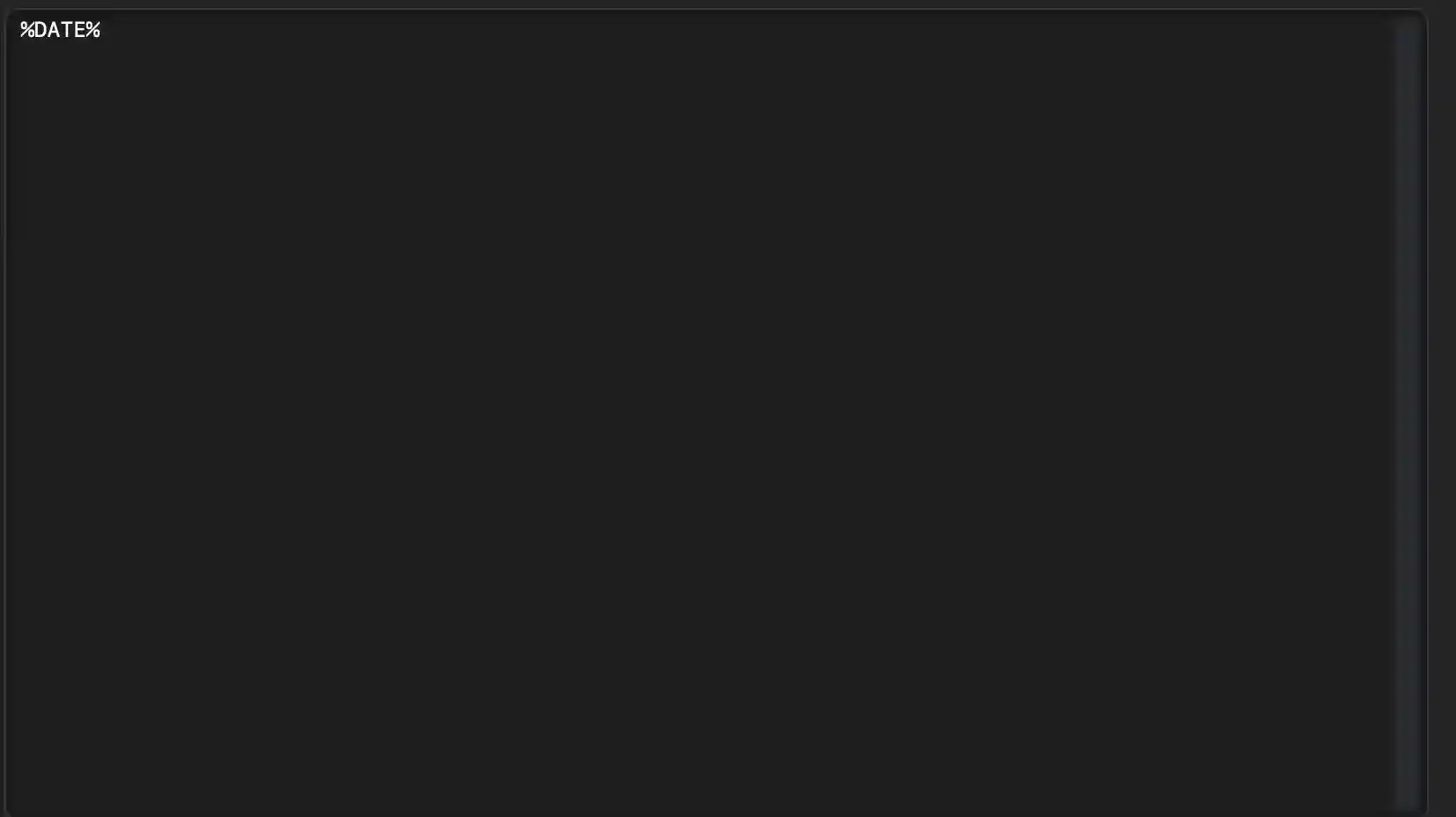
The editable text body of the snippet currently being configured. Everything typed here becomes the literal output delivered when the snippet is triggered, with substitution tokens resolved at that moment.
- Stores the raw content that will be injected, copied, or passed to a launcher. Edited inline; changes are captured as they are made and persisted on a debounced write.
- The visible token marks a substitution point. When the snippet runs, the token is replaced by the current date and time rendered through the token's configured format string, and the surrounding text is left untouched.
- The token text itself is the matching key: the date substitution is bound to exactly this sequence. Renaming or deleting it removes the link, so no date is produced — the characters would be inserted verbatim instead.
- Because the token is a plain sequence embedded in the body, it can appear anywhere within a sentence, be repeated, or be combined with other tokens. Substitutions are applied in the order the tokens are defined, so later tokens can operate on text produced by earlier ones.
- Remaining empty area is free-form content space for adding fixed text, code, or further tokens such as manual fields and clipboard insertions.
- Line breaks, indentation, and spacing are preserved literally in the output; the configured new-line sentinel is expanded into a real line break at insertion time.
- Monospaced presentation keeps columns and code indentation visually aligned while editing.
- Shading reflects the text-editing appearance preference; switching that preference off renders the same content on a light surface without affecting the stored value.

A compact action row within the text snippet editor that inserts dynamic substitution tokens into the snippet body and registers the corresponding placeholder definitions. Each action also places the newly generated token on the system pasteboard, so the token can be pasted elsewhere in the snippet content, and forces the placeholder configuration area open for immediate editing.
- Add Field — Appends a unique named token (a percent-delimited field name combined with a randomly generated suffix) to the snippet content and creates a matching search-and-replace placeholder. When the snippet is later triggered, the token is not resolved automatically: the user is prompted to supply a value for the labelled field, and that value replaces the token in the final output. The generated token is simultaneously written to the pasteboard for reuse.
- Add Date — Appends a date token to the snippet content and creates a placeholder whose behaviour is date substitution. At invocation, the token is replaced by the current date rendered with the placeholder's editable format pattern. The generated token is simultaneously written to the pasteboard for reuse.
- Add Clipboard — Appends a clipboard token to the snippet content and creates a placeholder whose behaviour is pasteboard substitution. At invocation, the token is replaced by the current clipboard contents, optionally transformed by the configured case policy and by the additional processing options (search-and-replace pairs, translation target, and AI pre-prompt). The generated token is simultaneously written to the pasteboard for reuse.
Each addition is recorded in the stored snippet structure and schedules a debounced persistence write, so no explicit save is required.

The action row beneath the text snippet editor governs how the snippet's stored text is turned into deliverable content, and whether its substitution rules are exposed for inspection.
- Copy Code — Produces the finished text by resolving every automatic substitution first: inserted dates formatted per their definitions, and clipboard contents possibly rewritten by an AI instruction and translated before insertion. Manual substitution fields are left unresolved and instead presented in a form so their values can be supplied. The resulting text is placed on the system clipboard for use in any other application. This is the path to use when the snippet is meant to be adapted to each use.
- Fast Copy — Places the snippet's stored text on the clipboard verbatim, bypassing all substitution logic, date insertion, clipboard capture, AI rewriting, translation and manual field prompting. Output is immediate and identical every time, suited to static content that never varies.
- Show Fields — Expands the substitution panel below the editor, revealing the definitions that drive dynamic content: the token to be matched, the kind of value it produces, and its associated detail such as a field label, a date pattern, or a clipboard transformation policy. Making the panel visible also allows those definitions to be added to, edited, or removed.
- Hide Fields — Collapses the substitution panel, returning the freed space to the text editing area without altering any of the underlying definitions. The label and symbol indicate which of the two states is currently active, and the transition is animated.
Fields

This panel lists the dynamic fields defined for the text snippet currently being edited. Each entry binds a token written inside the snippet body to a replacement behaviour, so that when the snippet is triggered the token is swapped for a value before the text is inserted into another application. Rows are ordered; substitutions are applied in the order shown.
- Substitute — the literal token searched for inside the snippet body. Editing it re-targets the substitution, so occurrences of the old token are no longer replaced while occurrences of the new one are.
- Type — the kind of value produced for that token. Switching away from search-and-replace changes what the third column offers, allowing the token to be resolved automatically instead of prompting the user.
- Field / Format — when the type prompts for input, this is the label presented to the user in the filling dialog when the snippet runs; it names the information being requested so multiple fields can be completed unambiguously.
- Add Field — appends a new entry to the list with a freshly generated unique token, copies that token to the clipboard for pasting into the snippet body, and reveals this panel so the new entry can be configured immediately.
- Delete (per row) — removes that entry from the list. The token left in the snippet body is then no longer resolved, so the literal text would be inserted unchanged; the remaining fields keep their order and configuration.
Note: A drag area is not present in this view.
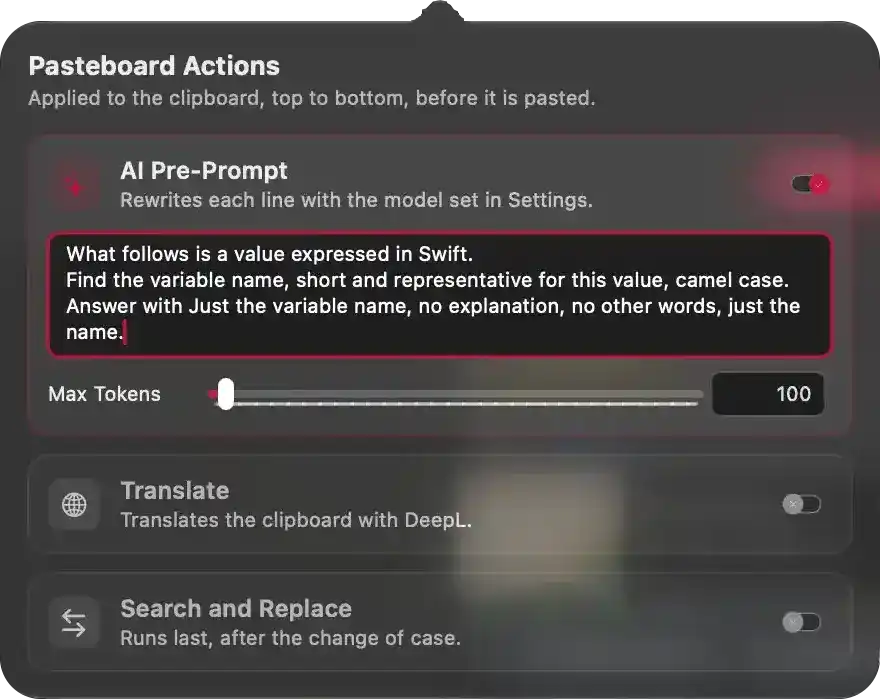
Defines the sequence of transformations applied to clipboard content before it is inserted into a snippet. Enabled steps run from top to bottom, each one operating on the output of the previous step.
- AI Pre-Prompt — When enabled, each line of the clipboard is rewritten by the language model configured in the application's AI settings, and the model's answer replaces that line. Currently active.
- Prompt — The instruction sent to the model together with every clipboard line. It defines the transformation to perform (for example, extracting a short camel-case variable name from a Swift value and answering with nothing but that name).
- Max Tokens — Upper bound on the amount of text the model may generate for each processed line. Set to 100; larger values allow longer answers but increase processing time.
- Translate — When enabled, clipboard content is sent to DeepL and substituted with its translation. Currently inactive; when active it exposes the target language and an option to preserve line breaks.
- Search and Replace — When enabled, a list of search/replace pairs is applied to the clipboard content. Runs last, after the case transformation. Currently inactive.
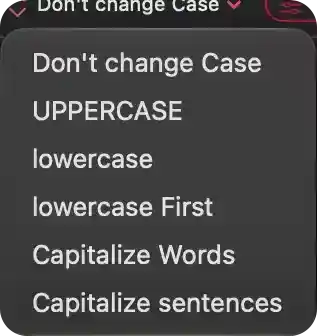
Defines how text taken from the system clipboard is reformatted before being inserted into a snippet. Selecting a policy changes the case of the entire clipboard payload, affecting only the content produced by this placeholder and not the original clipboard data.
- Don't change Case — Leaves the clipboard text exactly as copied.
- UPPERCASE — Converts every character to uppercase, useful for constants, codes, or shouted emphasis.
- lowercase — Converts every character to lowercase, useful for normalized identifiers or email addresses.
- lowercase First — Lowercases only the first character and preserves the rest, useful for mid-sentence insertion.
- Capitalize Words — Capitalizes the first letter of every word, useful for titles and names.
- Capitalize sentences — Capitalizes the first letter of each sentence while leaving the rest of the text intact, useful for pasted prose or quotes.
Header
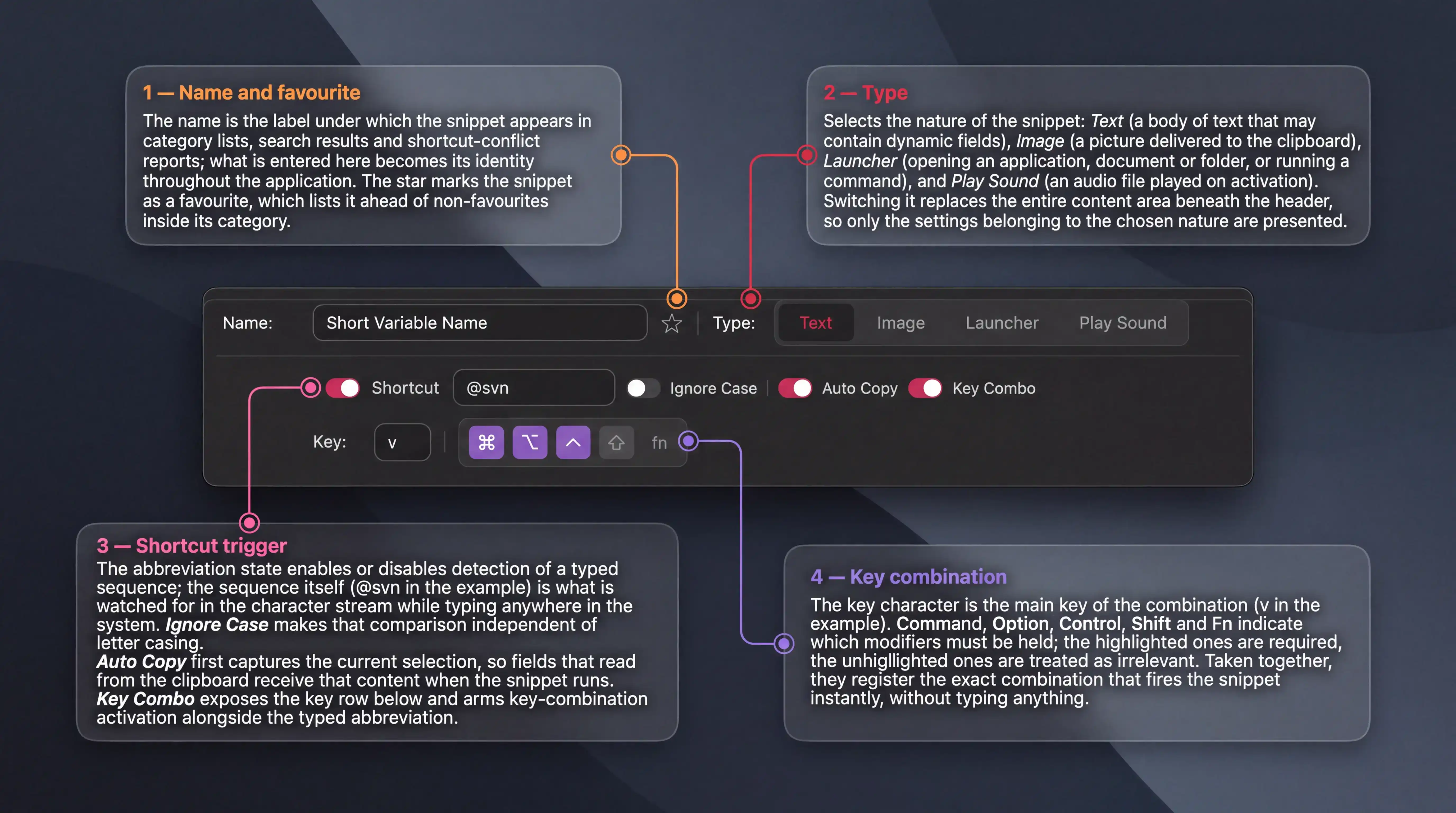
Defines what the snippet is called, what kind of content it carries, and which keystrokes activate it anywhere in the operating system. Every change applies to the snippet currently open in the editor and immediately affects how global triggers are matched.
1 — Name and favourite
- The name is the label under which the snippet appears in category lists, search results and shortcut-conflict reports; what is entered here becomes its identity throughout the application.
- The star marks the snippet as a favourite, which lists it ahead of non-favourites inside its category.
2 — Type
- Selects the nature of the snippet: Text (a body of text that may contain dynamic fields), Image (a picture delivered to the clipboard), Launcher (opening an application, document or folder, or running a command), and Play Sound (an audio file played on activation).
- Switching it replaces the entire content area beneath the header, so only the settings belonging to the chosen nature are presented.
3 — Shortcut trigger
- The abbreviation state enables or disables detection of a typed sequence; the sequence itself (
@svnin the example) is what is watched for in the character stream while typing anywhere in the system. - Ignore Case makes that comparison independent of letter casing.
- Auto Copy first captures the current selection, so fields that read from the clipboard receive that content when the snippet runs.
- Key Combo exposes the key row below and arms key-combination activation alongside the typed abbreviation.
4 — Key combination
- The key character is the main key of the combination (
vin the example). - Command, Option, Control, Shift and Fn indicate which modifiers must be held; the highlighted ones are required, the unhighlighted ones are treated as irrelevant.
- Taken together, they register the exact combination that fires the snippet instantly, without typing anything.

- The leading “Name:” caption identifies the editable user-facing designation for the current snippet.
- The editable value shown as “Short Variable Name” is the snippet name. Changing it renames the snippet everywhere it appears, including lists, search results, conflict reporting, and trigger references. The change is persisted through the normal update cycle.
- The star symbol sets whether the snippet is marked as a favorite. Activating it toggles favorite status; favorited snippets are visually emphasized and sorted ahead of non-favorites in the snippet list.
- The thin vertical separator divides the name and favorite area from the adjacent snippet-type controls.

Defines which kind of payload a snippet carries, and therefore which editing surface appears below and what happens when the snippet is triggered anywhere in the system. Changing the selection immediately switches the snippet's stored kind, persists the change, and re-renders the editor with the matching configuration area.
- Type: Identifies the category of content the snippet holds. The active entry is highlighted in the accent color; only one kind can be active at a time.
- Text — The snippet stores editable text, optionally containing placeholders. On trigger, substitutions are resolved and the resulting text is delivered to the frontmost application.
- Image — The snippet stores a picture file. On trigger, the image is placed on the system clipboard and pasted into the active context.
- Launcher — The snippet performs an action instead of inserting content: opening an application or document, revealing a location in the file browser, or running a shell command. Selecting this reveals a further choice of launcher behavior below.
- Play Sound — The snippet stores an audio file that plays on trigger. This kind works even when no text input field is focused, since nothing is inserted into the current application.
Switching the kind preserves the previously entered content for each kind, so returning to a former selection restores its stored data rather than starting empty.

- Shortcut: Enables or disables global abbreviation-based activation for the snippet. When active, the typed abbreviation is monitored across applications; when inactive, the abbreviation is ignored and the associated value cannot be used as a trigger.
- Abbreviation value (
@svn): Defines the character sequence that activates the snippet when typed anywhere. On a match, the sequence is removed from the current text context and the snippet action is performed. At least two characters are required for abbreviation matching to work. - Ignore Case: Controls whether abbreviation matching respects letter case. When inactive, only the exact case triggers the snippet; when active, differently cased variants also match.
- Auto Copy: Captures the current selection or clipboard content before a key-combination-triggered snippet runs. The captured content becomes available to clipboard-based substitutions, and the previous clipboard content is restored afterward.
- Key Combo: Enables a keyboard-combination trigger for the snippet. When active, the snippet can also be invoked through assigned modifier keys and a key character; changing it re-registers the combination so it takes effect immediately.

Defines a keyboard combination that activates the snippet from anywhere in macOS, independently of the abbreviation sequence. A combination is only active when at least one modifier is engaged alongside the key character; the combination is re-registered globally each time it changes and applies exclusively to the snippet currently being edited.
- Key: — the character pressed together with the chosen modifiers. Accepts a single character (here
v). Matching compares only the character ignoring modifiers, so the same letter can be reused with different modifier sets. - Command (⌘) — requires the Command key to be held. Shown engaged; part of the current combination.
- Option (⌥) — requires the Option/Alt key to be held. Shown engaged; part of the current combination.
- Control (^) — requires the Control key to be held. Shown engaged; part of the current combination.
- Shift (⇧) — requires the Shift key to be held. Shown not engaged, so Shift is not part of the required set and the combination stays matchable when Shift is pressed.
- Fn — requires the Function key to be held. Shown not engaged, so it is not required for this combination.
When the combination is pressed, the snippet's action runs in the frontmost application: the trigger character and any preceding temporary text are removed, the resulting content is delivered, and the previous clipboard contents are restored afterwards. If the snippet is configured to capture the current selection first, that selection is copied before the action is performed and then consumed by any clipboard placeholders in the snippet.
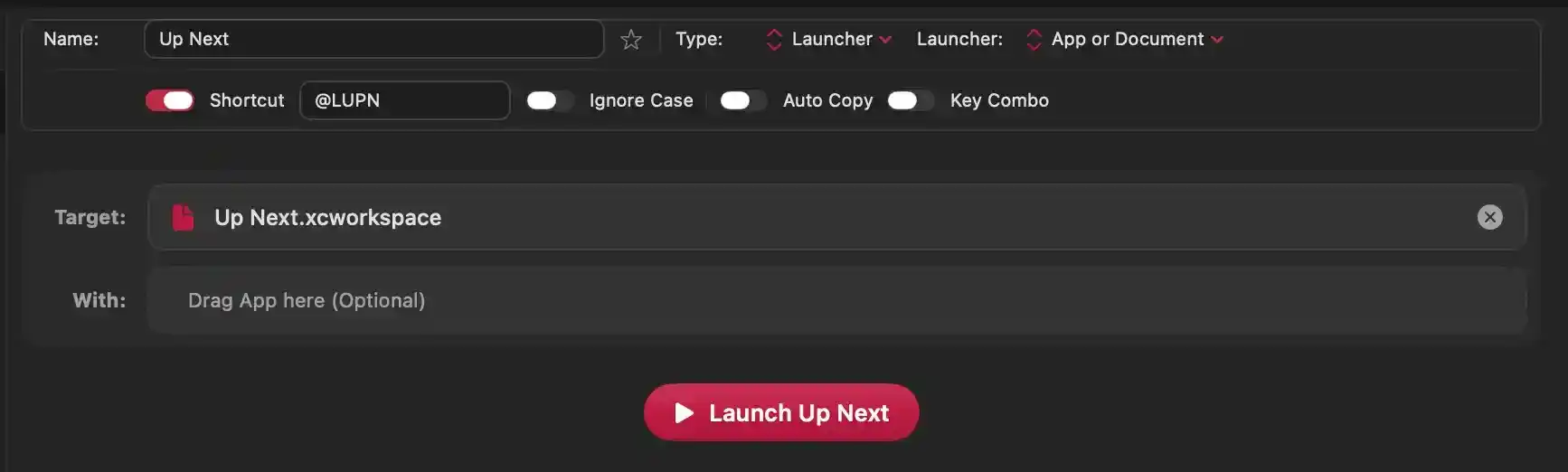
Configures a launcher snippet that opens or reveals a file, folder, or application, optionally using a specific companion app. The snippet can be activated by typing an abbreviation anywhere in macOS or by pressing a key combination.
- Name — Sets the identifier shown in snippet lists and conflict warnings. Current value: "Up Next".
- Favorite — Marks the snippet as a favorite, affecting sort order and visual emphasis.
- Type — Determines the snippet category. "Launcher" means triggering it performs a file, folder, application, or script action. Changing this switches the editor and runtime behavior.
- Launcher — For launcher snippets, selects the action: "App or Document" opens the target (optionally with another app), "Reveal in Finder" shows the target in Finder, and "Command Line" runs the code as a shell script.
- Shortcut — Enables abbreviation triggering. When on, typing the abbreviation (
@LUPN) anywhere in the system deletes the typed text and performs the launcher action. - Ignore Case — When on, abbreviation matching does not distinguish uppercase from lowercase.
- Auto Copy — When on, a key-combination trigger first copies the current selection or clipboard content for use by the snippet before performing the action.
- Key Combo — Enables a separate key-combination trigger. When on, a key and modifiers can be assigned; pressing that combination performs the launcher action.
- Target — Shows the file, folder, or application to open or reveal. Current target: "Up Next.xcworkspace". The remove control clears the target. This area also accepts dragged files, folders, and applications; dropping an item sets it as the launch target.
- With — Accepts dragged application bundles. Dropping an app sets it as the application used to open the target. When empty, the target opens with its default application.
- Launch Up Next — Performs the launcher action immediately. Depending on the launcher setting, it opens the target (with the companion app if set) or reveals it in Finder.
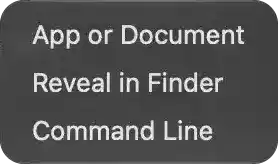
Defines which outcome Snip performs when a launcher snippet is activated. The selected option determines both the configuration surface shown in the editor and the behavior executed at trigger time, so changing it changes what the snippet does rather than merely how it looks.
- App or Document — Opens the configured target file, folder, or application, optionally through a chosen companion application. Selecting this makes the editor request a target and, once a target exists, an optional "open with" counterpart.
- Reveal in Finder — Displays the configured target inside Finder instead of launching it, which is useful for locating assets, project folders, or downloads without opening them.
- Command Line — Treats the snippet's text as a shell script and executes it. Selecting this replaces the file drop zones with a script editor and a dedicated run action.
Sound
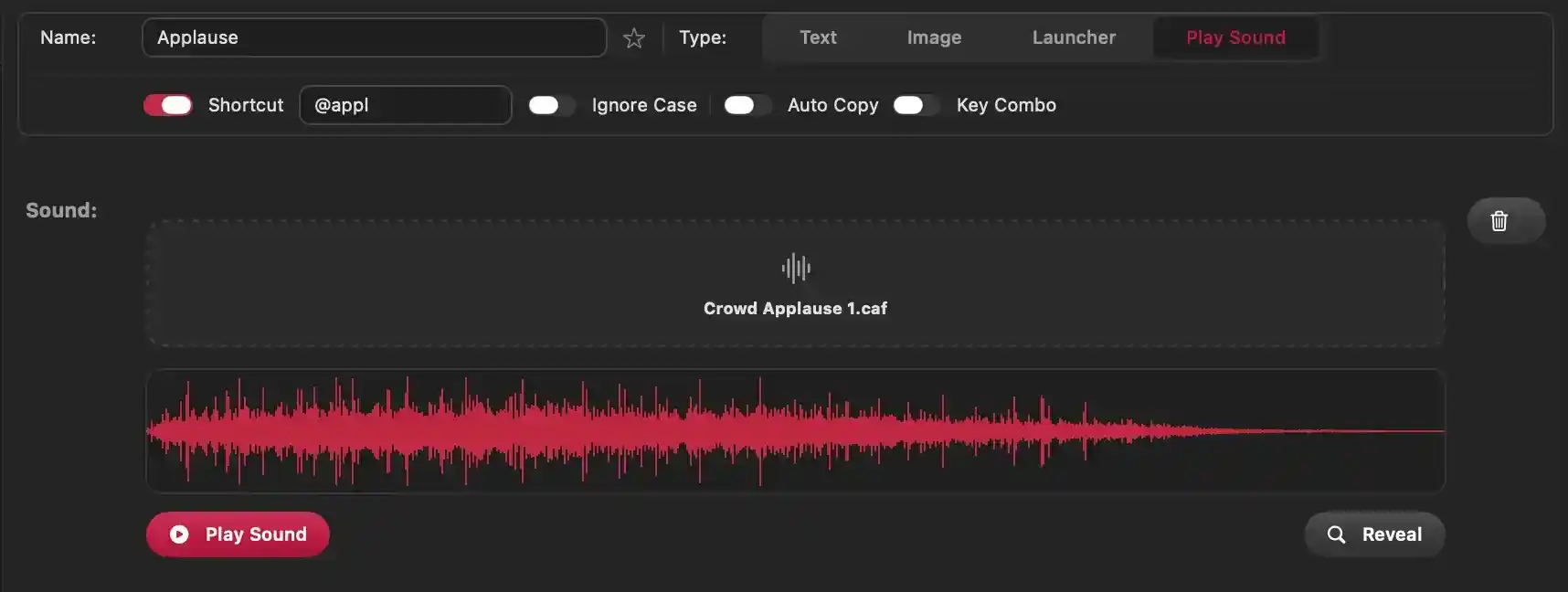
Configures a single sound snippet — the audio asset it plays, how it is triggered, and how the result is delivered when the trigger fires anywhere in macOS.
- Name — the label identifying the snippet in lists, search results and conflict warnings.
- Star — marks the snippet as a favourite; favourited snippets are listed before the others.
- Shortcut — when enabled, the snippet fires as soon as the configured abbreviation is typed in any application; the abbreviation itself is entered next to it. The typed abbreviation is erased from the frontmost app and replaced by the snippet's action.
- Ignore Case — makes the abbreviation match regardless of letter casing, so
@APPLand@applbehave identically. - Auto Copy — before the action runs, the current selection in the frontmost app is copied so it can be reused by the snippet.
- Key Combo — reserves a key combination (modifier keys plus a character) as an alternative trigger for this snippet, independent of the typed abbreviation.
- Sound drop area — accepts
aif,aiff,wav,wave,mp3,aac,m4aaudio files. Dropping a file copies it into Snip's local sound storage, assigns it to this snippet and displays its original filename; the snippet then plays that audio whenever it is triggered. - Waveform — visualises the loaded audio so its length and content can be verified at a glance.
- Play Sound — plays the loaded audio immediately and confirms the snippet works; the same playback occurs on trigger, even outside a text field.
- Reveal — locates the stored audio file in Finder.
- Trash — removes the audio from the snippet, leaving it without content until a new file is provided.
Launcher
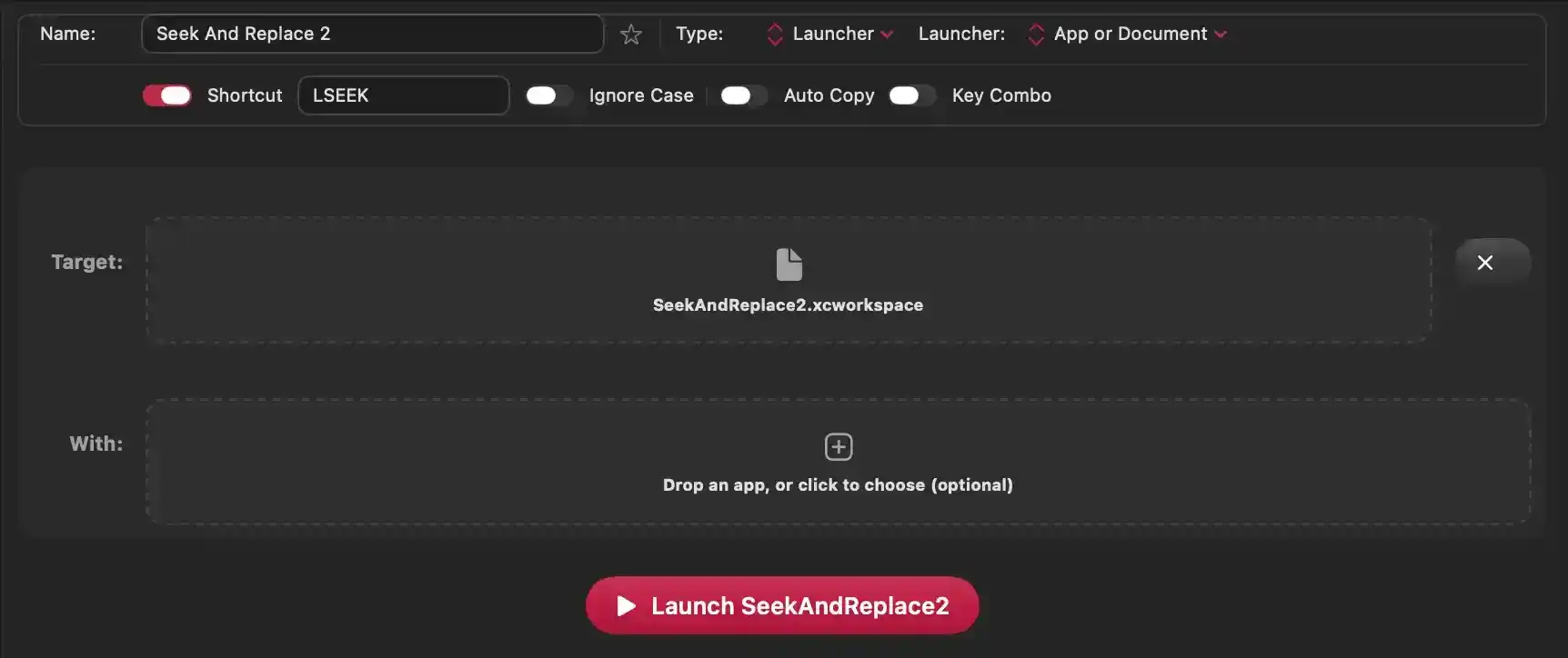
Defines a snippet that opens a file, document, or application, either directly or through a designated companion app. The panel covers both the trigger that fires the snippet anywhere in macOS and the target that the snippet acts upon.
Snippet identity and kind
- Name: "Seek And Replace 2" — the label used in lists, search results, conflict reports, and the filler window title.
- Favorite — marks the snippet so it is prioritized in listings and visually flagged with a star.
- Type set to Launcher — the snippet performs an action instead of pasting content, so the editor shows launch configuration rather than a text, image, or sound payload.
- Launcher set to App or Document — the configured target is opened using its default handler unless a companion application is specified. Selecting Reveal in Finder or Command Line instead would replace these settings with a reveal target or a script editor.
Trigger configuration
- Shortcut enabled — arms abbreviation-based triggering globally; while off, the abbreviation is stored but inert.
- Abbreviation "LSEEK" — the character sequence typed in any application that causes the snippet to fire. On match, the typed sequence is deleted and the launch is performed. Sequences shorter than two characters never trigger, and matching is disabled entirely when this is off.
- Ignore Case — allows the abbreviation to match regardless of letter casing, useful when caps lock or auto-capitalization may alter the typed sequence.
- Auto Copy — captures the current selection into the clipboard before running the action, making that content available to the snippet.
- Key Combo — enables a keyboard-shortcut trigger as an alternative to typing the abbreviation; enabling it reveals a key character field and the modifier selectors.
Target selection
- Target: "SeekAndReplace2.xcworkspace" — the file, folder, or application the snippet opens. Dragging a file, folder, or application onto this area sets it as the target. The adjacent cross clears the target, which also hides the companion-app row and the launch action.
- With: — optional companion application used to open the target, which overrides the default handler. Dragging an application onto this area, or choosing one, assigns it; the area appears only after a target exists and is hidden when the launcher is set to reveal in Finder.
Execution
- Launch SeekAndReplace2 — immediately opens the configured target using its default application. The label reflects the current configuration, so it reads as launching the target alone, opening the target with the designated app, or revealing it in Finder, matching what the snippet does when triggered by its shortcut.
Settings
Settings
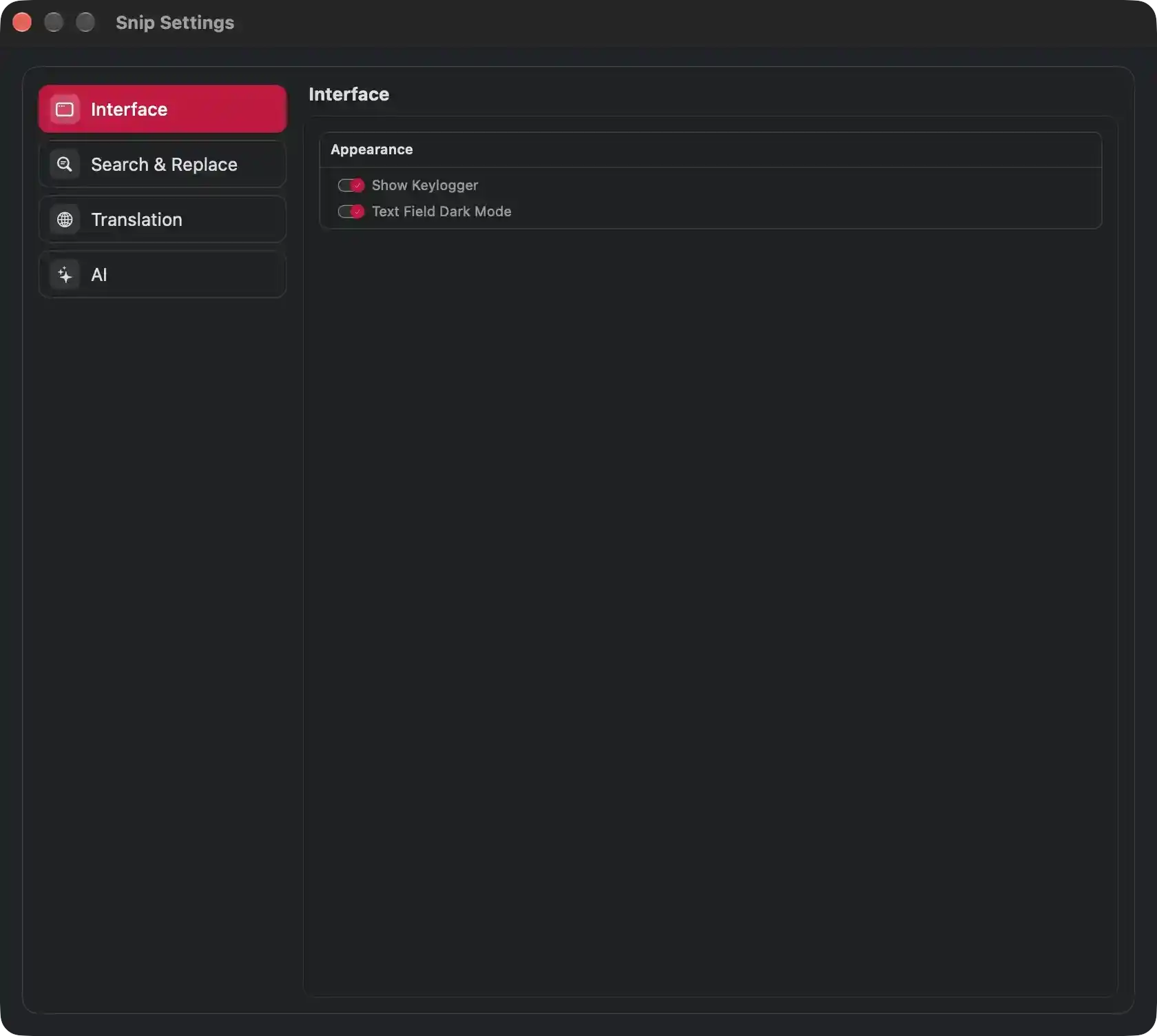
The Interface section governs how Snip presents itself while running: whether the background keystroke monitoring is made visible to the user and how the snippet editing surface is rendered.
- Show Keylogger — Controls the presence of the REC indicator in the main window's top bar. When active, that indicator displays the rolling buffer of characters Snip is currently inspecting for trigger matches, exposing exactly what the background listener is evaluating. When inactive, monitoring continues silently and no keystroke preview appears anywhere in the interface.
- Text Field Dark Mode — Determines the visual scheme of the snippet code editing area, choosing between a light or dark text surface so content remains comfortable to read while composing and reviewing snippets.
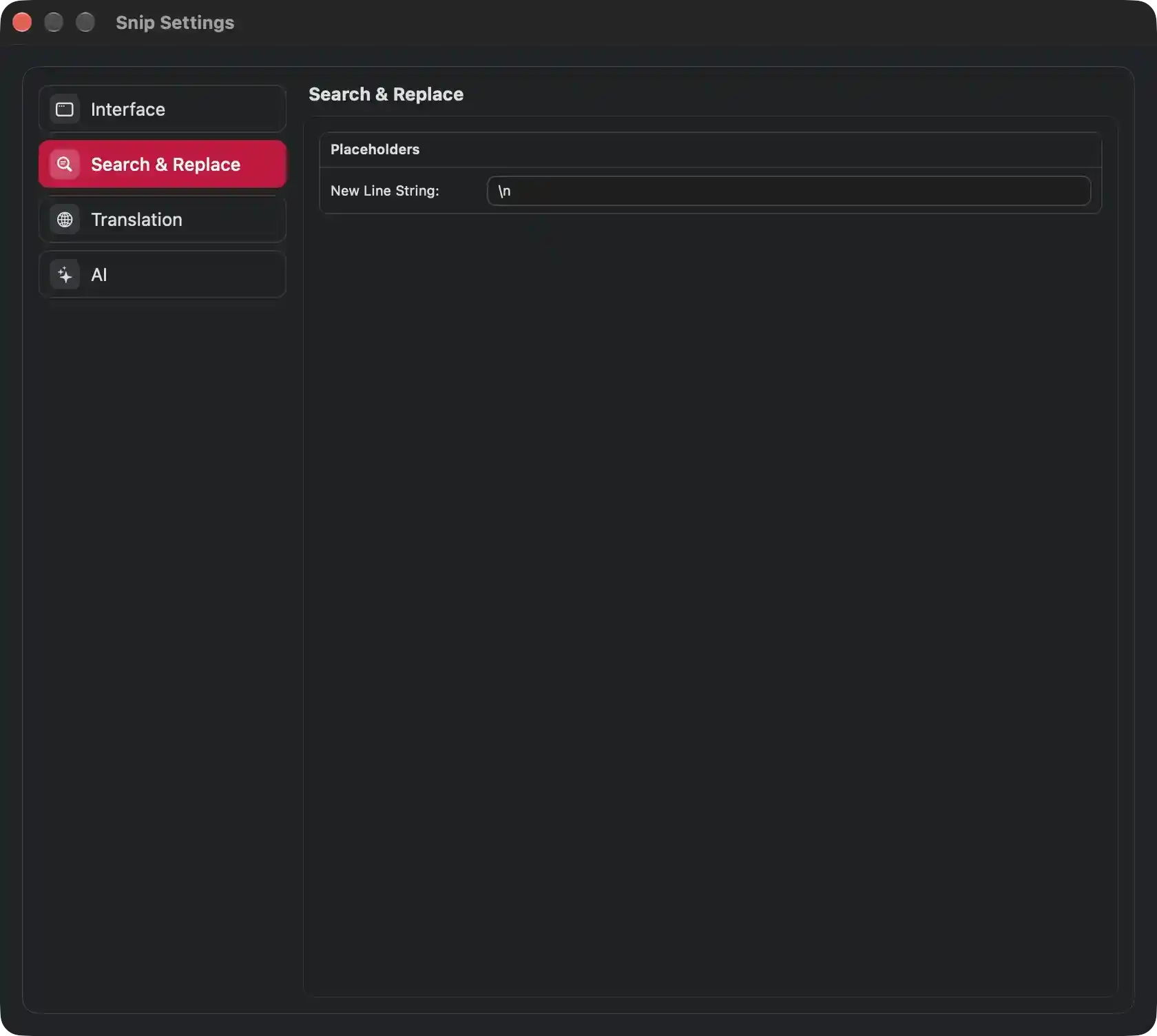
This screen configures how Snip interprets placeholder-related text conventions when expanding snippets. It contains a single group, Placeholders, which governs the literal sequence used to represent line breaks inside snippet content.
- New Line String — Defines the character sequence that stands for a newline within snippet code (default
\n). Whenever a snippet containing a pasteboard placeholder is expanded, every occurrence of this sequence in the resulting text is converted into an actual line break before insertion. Changing it alters which token triggers that conversion, allowing users to choose a marker that does not collide with their own content. The value is applied globally to all snippets and persists immediately.
The panel contains no drop areas or file drag-and-drop targets.
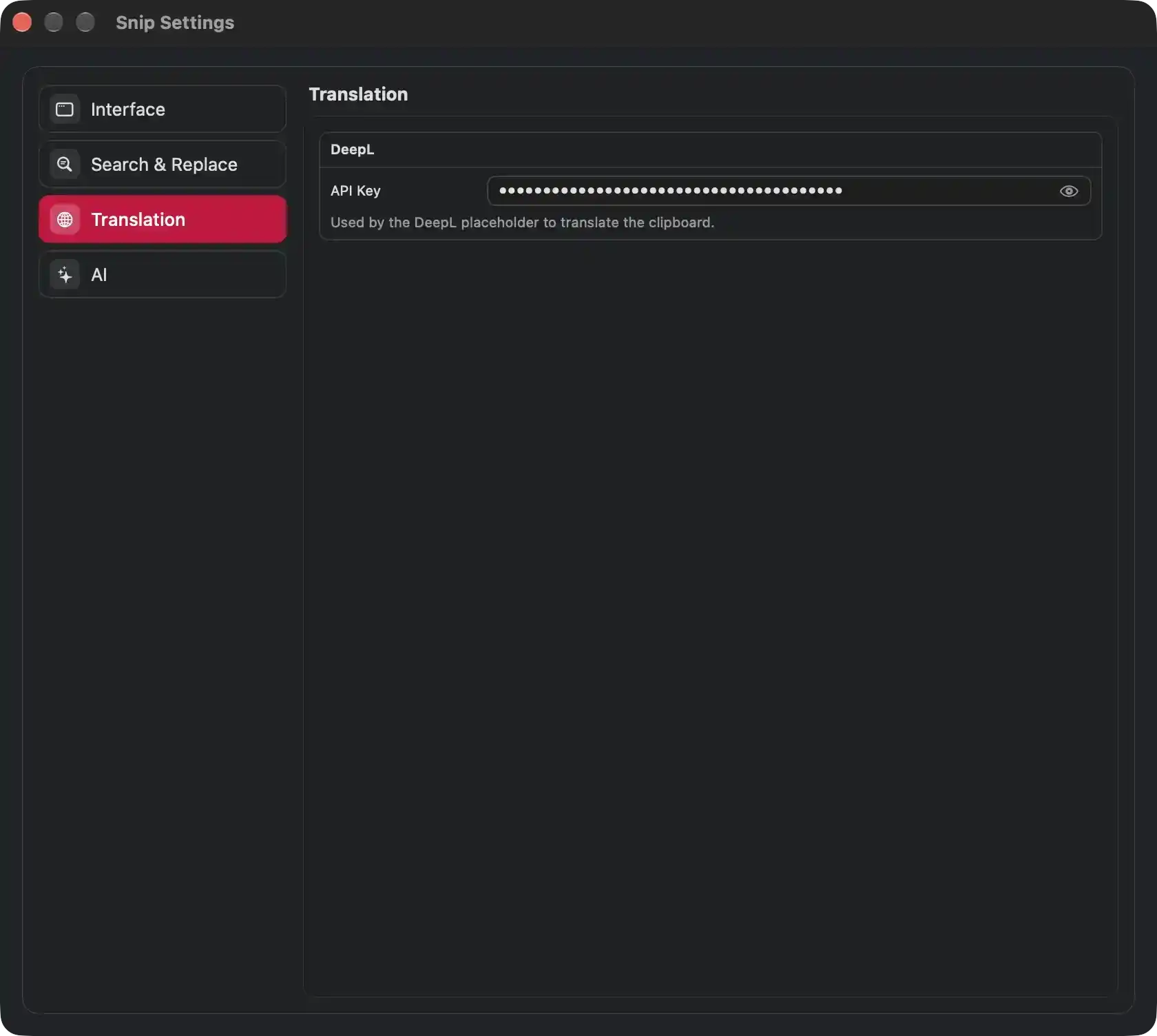
Configures the DeepL translation service used by pasteboard placeholders to translate clipboard content before it is inserted into a snippet.
- DeepL — Groups all settings related to the DeepL translation provider; the group is inactive until valid credentials are supplied.
- API Key — Credential that authorises requests to DeepL on the user's behalf. Its value is concealed by default and can be temporarily revealed for verification. When populated, clipboard placeholders that have translation enabled send their content to DeepL and substitute the translated result; when empty, translation is skipped and the original clipboard text is inserted unchanged. Any change is saved immediately.
The helper line beneath the field clarifies that the credential applies specifically to the DeepL action available inside pasteboard placeholders.
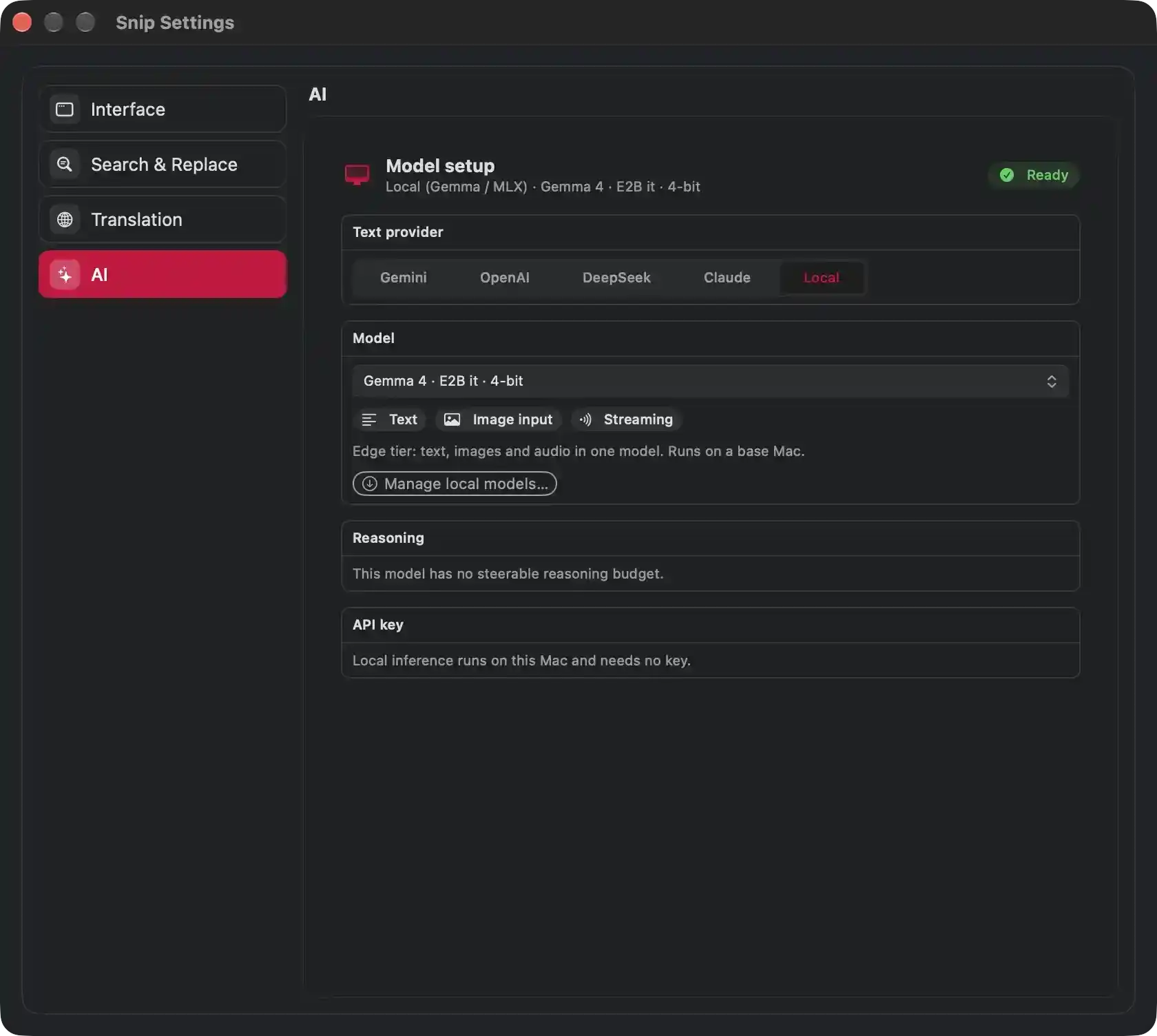
Configures the language-model engine used by Snip's AI pre-processing, i.e. the step that rewrites clipboard content through a prompt before a pasteboard placeholder is inserted. The selection made here applies globally to every snippet that uses AI pre-processing.
- Model setup header — Shows the currently active engine family, its quantization and build, plus a readiness indication. A green “Ready” state confirms the engine is initialized and available for substitutions; a non-ready state means AI pre-processing is skipped and clipboard content passes through unchanged.
- Text provider — Selects which engine answers AI prompts: Gemini, OpenAI, DeepSeek, Claude, or Local. The choice determines where the instruction travels: the four named services require a matching key and network access, while Local performs inference on this Mac. The active provider (Local) means prompts never leave the machine.
- Model — Chooses the specific model served by the active provider. The selected entry (Gemma 4 · E2B it · 4-bit) is the exact weights that will generate the rewritten text; changing it alters output quality, speed, and memory footprint.
- Capability indicators — Mark what the selected model accepts and produces: Text for prompt-based rewriting, Image input for models that can interpret pictures alongside text, and Streaming for incremental token delivery. These are informational and reflect the chosen model’s abilities.
- Model description — Explains the tier and hardware expectations of the selection; here an edge-class model handling text, images and audio together and running on a base Mac. It sets the expectation on speed and resource usage for the user’s machine.
- Manage local models — Opens the panel for downloading, removing, or switching between locally stored models. It is the entry point for acquiring additional on-device models or freeing disk space.
- Reasoning — Reports whether the selected model exposes a steerable reasoning budget. When absent, as here, the model cannot be told how much internal deliberation to spend, so no such adjustment is offered.
- API key — Reports the credential requirement of the active provider. For local inference no key is needed because generation happens entirely on this Mac; for the cloud providers this area would hold the credential used to authenticate their requests.