

Main UI
Main UI
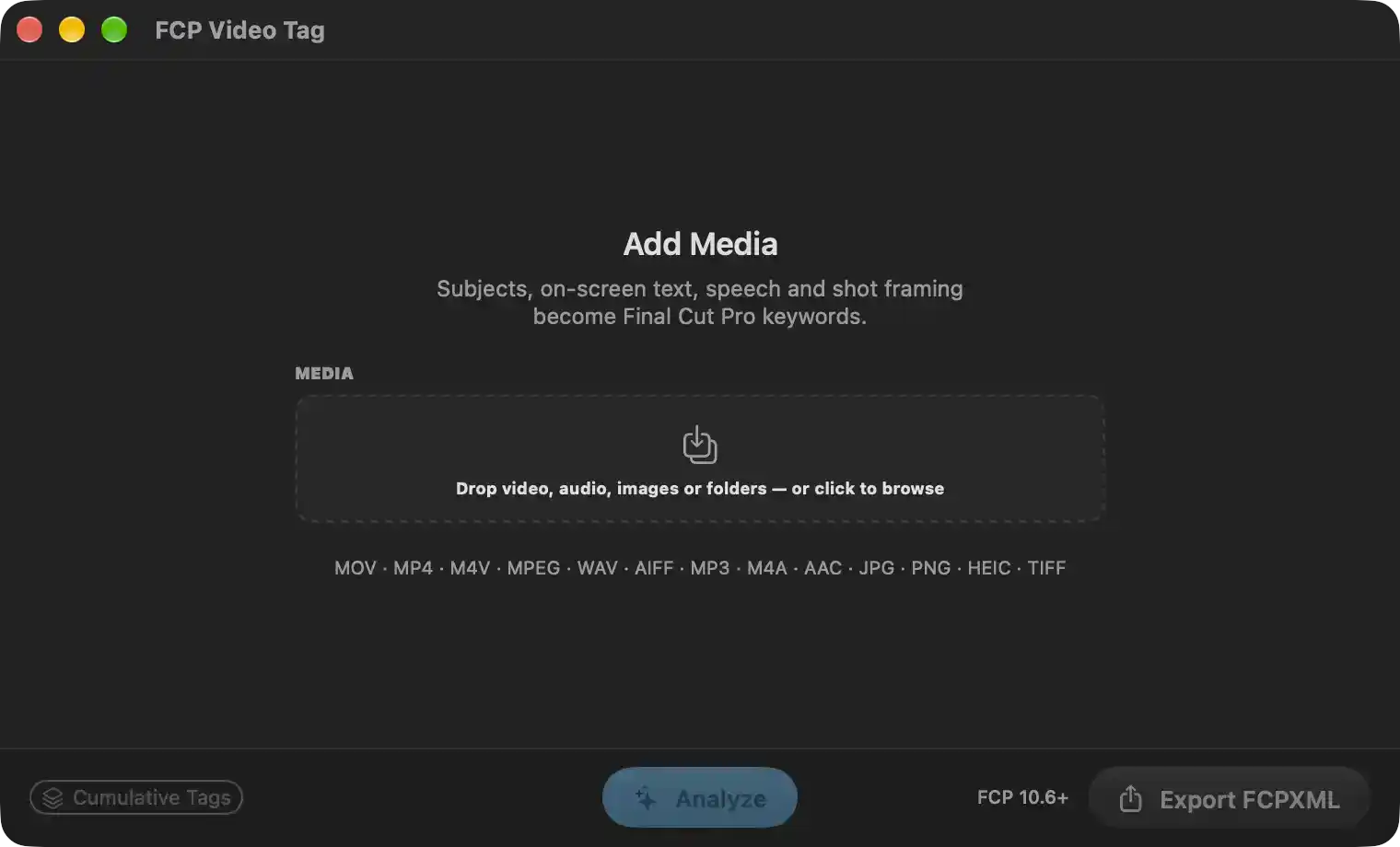
The main window in its empty state, shown before any media has been added. It explains what the application produces — subjects, on-screen text, speech and shot framing turned into Final Cut Pro keywords — and provides the entry point for loading media. The same window becomes the asset list once files are added; the action bar remains available at all times.
- Media drop area — the central dashed region, labelled "Drop video, audio, images or folders — or click to browse". It accepts files and folders dragged from Finder or another application. Dropping one or more items (or clicking the region to open a file chooser) adds the media to the working list and begins reading their metadata. Video, audio and still-image files are accepted; a dropped folder is scanned recursively and every supported file inside it is added, with the folder hierarchy preserved and later used to derive folder-name keywords.
- Supported format caption — lists the file types the drop area recognises: MOV, MP4, M4V, MPEG, WAV, AIFF, MP3, M4A, AAC, JPG, PNG, HEIC and TIFF. Files outside this set are ignored during a folder scan.
- Cumulative Tags — combines the keywords of every file currently in the list into a single aggregate tag set and opens it for inspection, giving a shoot-wide overview instead of a per-file one. Unavailable while the list is empty.
- Analyze — runs the enabled analyses across every file in the list: subject recognition, on-screen text recognition, speech transcription and shot-framing classification, plus creation-date and folder-name tagging. Progress is reported per file and overall. It stays unavailable until all added files have finished loading, and remains disabled for the whole run so a batch cannot be started twice.
- FCP 10.6+ — indicates the Final Cut Pro version the export currently targets, which determines the FCPXML schema variant that will be written. The value follows the configured export version.
- Export FCPXML — produces the tag data for the current list and delivers it either as a saved
.fcpxmlfile or directly into a running Final Cut Pro session, according to the configured export mode. The label reflects the chosen mode. It is unavailable while the list is empty and while any file is still awaiting analysis, since only completed files can be exported.
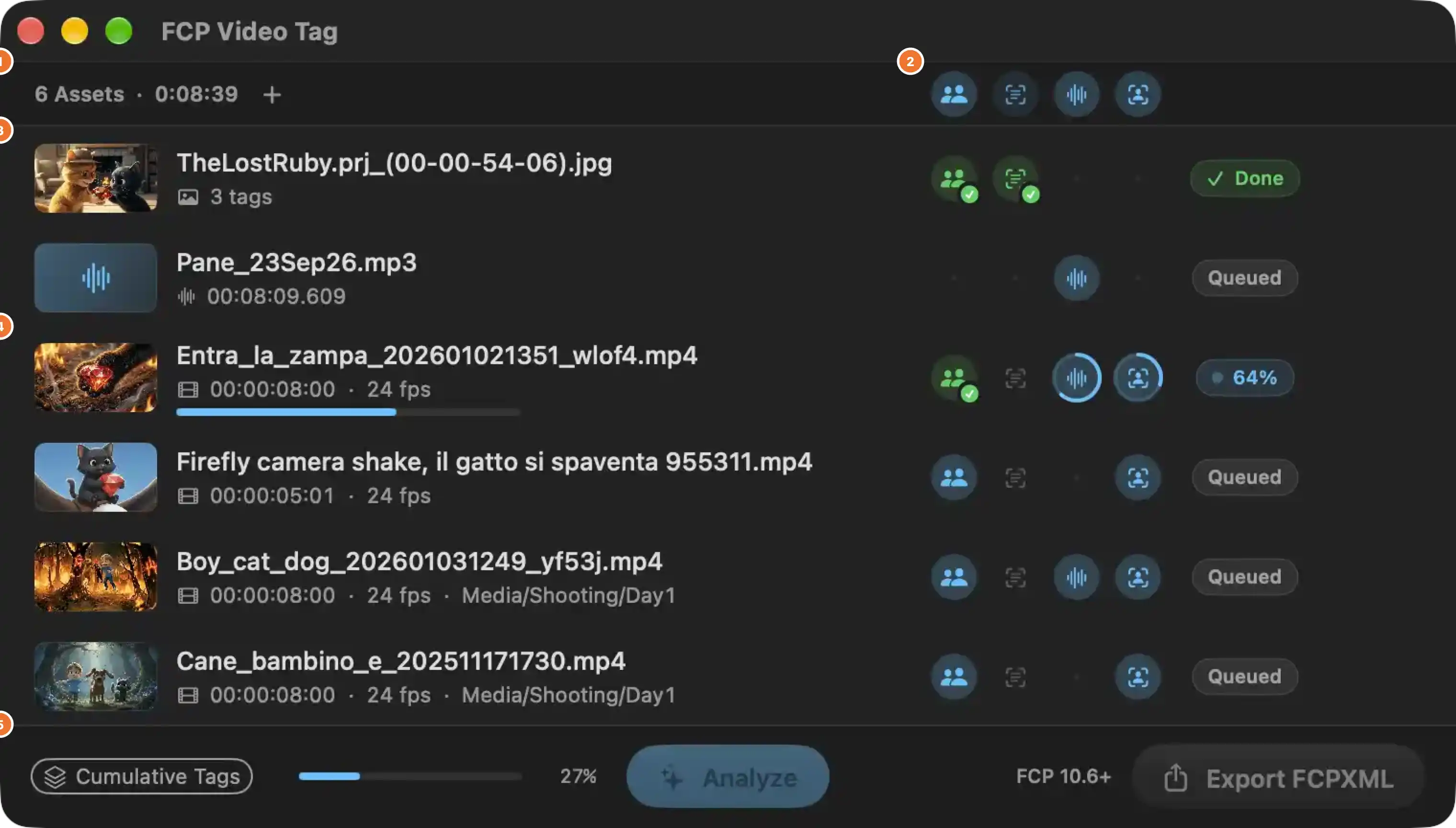
The main window manages one working batch of media assets. Files are ingested here, each file's four analysis engines are enabled or disabled, the batch is analysed, and the resulting keywords are synthesised across the whole batch or exported to Final Cut Pro. The window is split into a scrollable asset list (with a pinned header) and a permanently visible action bar at the bottom.
Drag area:
- The entire window accepts dragged files and folders. Dropped items are added to the batch; folders are scanned recursively and hidden items ignored.
- Accepted media: video (mov, qt, mp4, mpeg, m4v), audio (aif, aiff, wav, wave, mp3, aac, m4a), stills (jpg, jpeg, tif, tiff, png, heic).
- While a drag hovers over the list, a dashed accent overlay reading "ADD MEDIA / Release to add to the list" appears; releasing the drag appends the resolved assets to the batch.
1. Batch Summary and Add Media
- Batch summary — "6 Assets · 0:08:39" states how many files are loaded and their combined running time, giving an immediate sense of the workload before analysis.
- Add Media (+) — opens the system media picker for files and folders, adding everything selected to the same batch. Equivalent to a drop.
2. Column Analysis Toggles
Four icons aligned with the four analysis columns below them. Each one switches that analysis on or off for every file in the batch that supports it; unsupported files are left untouched.
- Subjects — visual subject recognition on video and images.
- On-Screen Text — optical character recognition of visible text on video and images.
- Speech — transcription and keyword extraction from the audio track of anything carrying one.
- Shot Framing — classification of the dominant camera framing, video only.
Each shows an aggregate state: filled accent when on for every supported file, hollow when off everywhere, partially filled when the batch is mixed, and a plain dot when no file supports it. Turning a column back off clears that analysis for the whole batch, letting a run be narrowed without editing files individually.
3. Per-File Analysis Toggles and Status
Each asset row repeats the same four analyses as independent switches for that single file, so a batch can mix engines.
- Poster / type tile — thumbnail of the frame, a waveform tile for audio files, or a type glyph.
- Title and detail line — file name plus duration, frame rate, source sub-folder and tag count once available.
- Per-file analysis switches — grey hollow = off; accent-filled = enabled and queued; a filling accent ring = currently running; a green check = finished; a dot = not applicable to this media type.
- Status indicator — Loading while metadata is read, Ready when idle, Queued when waiting its turn in a run, a percentage while analysing (shown here at 64 %), and Done with a checkmark once every enabled analysis for that file has completed. An inline progress bar under the file name tracks the same run.
- Right-clicking a row offers viewing its tags, revealing it in Finder, enabling or disabling every analysis for that file, and removing it from the batch; double-clicking opens its full tag set.
4. Action Bar
- Cumulative Tags — merges the keywords of every file in the batch into one synthetic set (subjects, text, speech, framing, dates, folders, generated and personal tags, with transcriptions re-processed and deduplicated) and opens it for inspection. Useful for judging a whole shoot at a glance.
- Batch progress with percentage — the aggregate advancement of the running batch (27 % here); it appears only while analysis is in flight.
- Analyze — the primary action: starts the enabled analyses across the whole batch. It is unavailable while files are still loading or a previous run is in progress, and is highlighted when files are waiting, marking it as the obvious next step.
- FCP version label ("FCP 10.6+") — the Final Cut Pro generation the export will target, which decides the XML schema produced.
- Export FCPXML — writes the tagged assets and their keyword collections as Final Cut Pro XML, or sends them straight into a running Final Cut Pro session, depending on the configured delivery mode. Unavailable until the batch is empty-free and fully analysed.

- "6 Assets · 0:08:39" — A live summary of the current working set. The leading figure reports how many media items are loaded in the main list; the trailing figure reports the combined duration of all loaded items, formatted as hours:minutes:seconds. Both values recompute continuously as files are added, removed, or finish initializing, giving an at-a-glance measure of the batch that is about to be analyzed and exported.
- Plus glyph (+) — Opens the media picker so additional files or folders can be appended to the current list. It is the header-level counterpart of the empty-state drop area, allowing more media to be brought into the batch without first clearing the existing list. Selecting folders adds their contents recursively, so a whole shoot can be added in one action, and the summary above updates immediately to reflect the enlarged set.

Four round glyphs sit in the header above the asset list. Each governs one of the four analysis pipelines that convert media content into Final Cut Pro keywords. Activating one applies that analysis across every file in the list that supports it; deactivating it excludes those results from the exported tag set. The appearance of each glyph reflects the aggregate state of that pipeline across the whole list—dimmed when off, accent-filled when queued, a filling ring while running, a green tick once every supporting file is finished, and a single dot when no file in the list can run it.
- People silhouette — Represents subject recognition. When active, Vision-based classification scans frames and stills to detect people, animals, objects and environments, producing subject keywords for each file. Deactivating it strips those keywords from the output without affecting the others.
- Text inside viewfinder corners — Represents on-screen text recognition. When active, optical character recognition reads visible typography—lower-thirds, signs, slides, placards—into text keywords. Deactivating it withholds those keywords from export.
- Vertical waveform bars — Represents speech transcription. When active, each file's audio track is transcribed and natural-language keyword extraction produces spoken-content tags, with trigger words kept regardless of frequency. Deactivating it skips transcription entirely for the entire list.
- Figure inside a framing frame — Represents shot framing classification. When active, a CoreML classifier assigns the dominant camera framing (extreme close-up through extreme long shot) as a framing keyword per file. Deactivating it omits that classification while leaving the other analyses intact.

This segment of a media asset row shows that an image asset has finished all applicable analysis and is ready for review or export.
- Thumbnail preview — Displays a visual representation of the asset, allowing quick identification of the file’s content before opening it.
- Asset name — Identifies the media item within the list. It is the primary reference used when locating, inspecting, or exporting the asset.
- Media-type symbol and tag count — The symbol indicates the asset is a still image. The adjacent count reports how many keywords are currently associated with the asset, combining results from completed analyses and any manual additions.
- Subjects analysis marker — Represents subject recognition for this asset. A green completion badge means subject detection has finished and its tags are currently included. Activating this marker enables or disables subject analysis for the asset, changing whether those keywords contribute to the asset’s tags and export.
- On-Screen Text analysis marker — Represents text recognition for this asset. A green completion badge means on-screen text detection has finished and its tags are currently included. Activating this marker enables or disables that analysis, changing whether recognized text contributes to the asset’s keywords.
- Completion status — The "Done" state confirms that every enabled analysis for this asset has finished. It signals that the asset is ready for inspection, tag review, copying, or batch export.

Represents one media asset in the batch analysis list. It combines asset identity, technical metadata, and live progress of the AI tagging pipeline that converts subjects, on-screen text, speech, and shot framing into Final Cut Pro keywords.
- Visual preview: Identifies the media at a glance and confirms the correct file is being processed.
- File name: The primary identifier of the asset. It is used for selection, export naming, archive search, and Finder actions.
- Technical metadata: Displays duration or timecode and frame rate. Helps verify editorial timing before tags are exported.
- Overall progress fill: Reflects how much of the enabled analysis work has completed for this file. As it advances, fewer analysis stages remain.
- Subjects state: Completed, shown in green with a confirmation mark. Subject recognition has finished successfully and its keywords are available. Activating this state would enable or disable subject-derived tags for the file.
- On-Screen Text state: Inactive or unavailable, shown muted. Text recognition is not currently contributing keywords. Activating it would include or exclude on-screen text tags.
- Speech state: Running, shown with an accent ring around the waveform. Audio transcription and keyword extraction are in progress; speech tags will appear when this stage finishes. Activating it would enable or disable speech-derived tags.
- Shot Framing state: Running, shown with an accent ring around the framing symbol. Shot classification is in progress; framing tags will be added when complete. Activating it would enable or disable framing keywords.
- Aggregate status: Displays “64%” with an activity dot. Indicates the file is currently being analyzed and shows the combined progress across all enabled stages. Once complete, the file is ready for tag review and export.

The bar consolidates the whole-list operations for the current media batch and reflects the state of an in-progress analysis run.
- Cumulative Tags — Opens a single synthetic tag view that merges the subjects, on-screen text, speech, shot framing, creation date, folder, generated and manual keywords of every asset currently loaded. The duplicates are removed, so the result reads as one combined keyword set for the whole shoot. It is available whenever the list is non-empty.
- Progress indicator — Shows the aggregate completion of the running analysis across the whole list, expressed both as a filled bar and as a numeric percentage (27% in this state). It communicates how far the current batch has advanced through its enabled analyses, and it is only meaningful while a run is under way. At full completion of every enabled analysis, the export becomes available.
- Analyze — Starts the analysis pipeline on every asset in the list, running the currently enabled analyses (subjects, on-screen text, speech, shot framing) plus the creation-date and folder keyword extraction for each file, then applying the generated-tag rules and writing the Finder tags if configured. The emphasis indicates it is the next required action and that at least one file is still awaiting processing. While a run is in progress the label changes and the operation is unavailable, so the batch cannot be started twice.
- FCP 10.6+ — Indicates which Final Cut Pro generation the export is currently targeting, and therefore which FCPXML schema variant will be produced: the modern schema for Final Cut Pro 10.6 and later, or the legacy schema for earlier versions. Changing this selection is what determines whether the resulting document is accepted by the installed Final Cut Pro release.
- Export FCPXML — Delivers the tag results of the whole list as a Final Cut Pro XML document, either writing a file to a chosen location or injecting the assets and keyword collections straight into a running Final Cut Pro session, depending on the configured export mode. It becomes available only when the list is non-empty and every asset has finished analysis; if tag export is configured for direct submission, the label reflects that destination instead. The licence is verified before the export is performed, and when no licence is present an alert is shown and nothing is written.
Tags
Tags
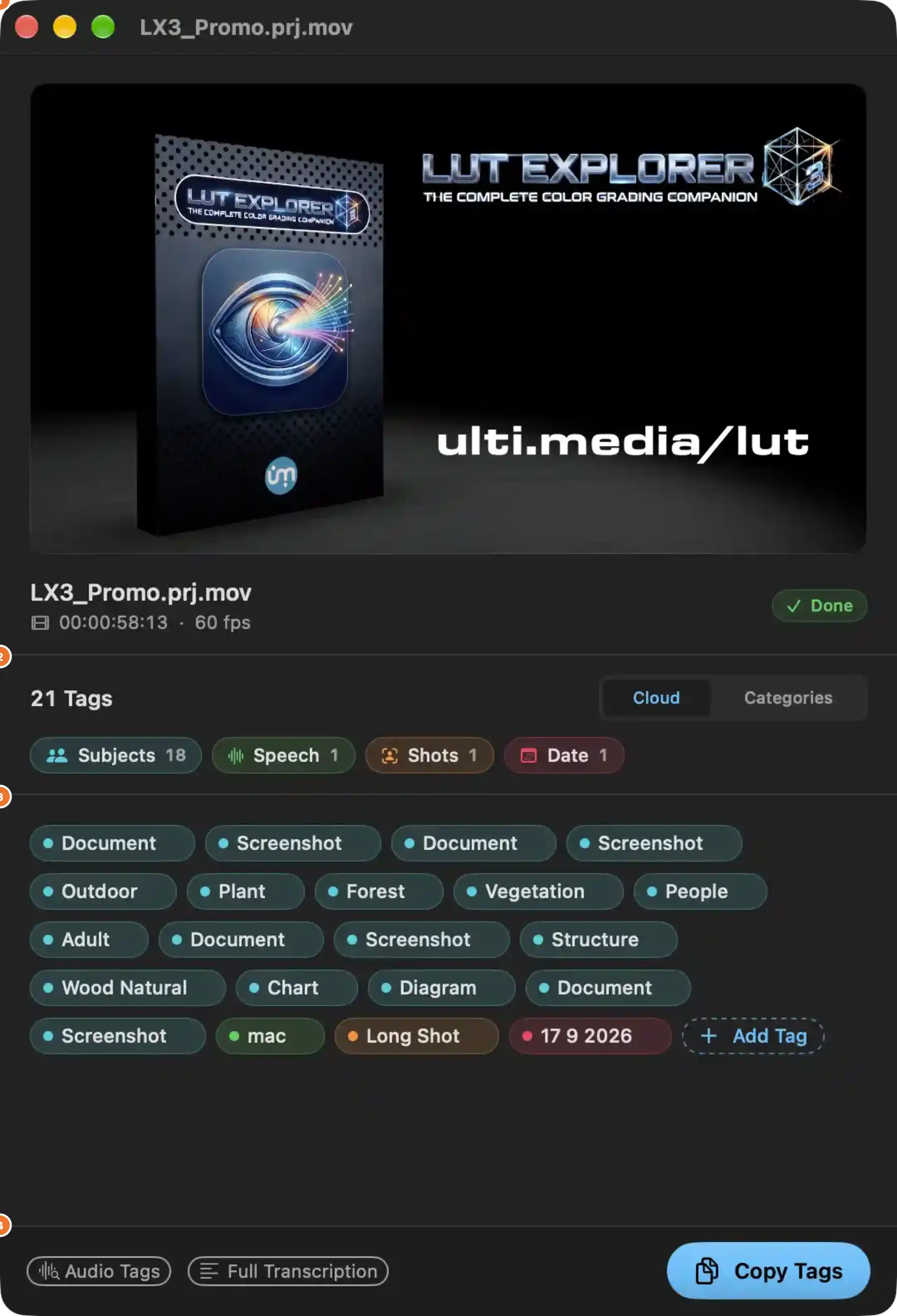
Presents the complete analysis outcome for a single media asset. The window combines a playback/inspection preview, the file's technical identity and processing status, and the full set of keywords the analysis produced, grouped by source category. From here the user reviews, prunes, extends and copies the tags that will be written to Final Cut Pro and to Finder.
The interface is divided into the following numbered topics:
1. Media Preview
The visual or audible representation of the asset being reviewed, spanning the full width of the upper area.
- Video assets play inline with floating playback controls.
- Audio assets are represented by their waveform, drawn in the application accent colour; clicking anywhere on the waveform jumps playback to that position.
- Still images are shown aspect-fitted on black.
- The aggregate "cumulative" tag set (all files combined) is shown as a generic stacked-tile graphic, since it has no single source file.
2. File Identity and Analysis Status
The header directly beneath the preview establishes which asset the tags belong to and whether its processing has finished.
- The file name identifies the asset being inspected; the entry is truncated in the middle so the extension remains readable.
- The detail line reports the asset duration as a timecode and its frame rate, giving editorial context for the tags below.
- The status pill on the trailing edge reflects the analysis lifecycle: still loading, ready, queued, analysing with a running percentage, or done. "Done" confirms every enabled analysis has completed and the tag set is final.
3. Tag Summary and Layout Presentation
The band separating the header from the tag body summarises volume and controls how the tags are displayed.
- The total tag count states how many keywords currently apply to this asset across all sources.
- The Cloud / Categories selector switches between a single undifferentiated flow of all tags and a grouped presentation with one block per source category. Only the selected presentation is persisted; Cloud is the default.
- In grouped presentation, each block carries its own icon, name and count, and the personal tag block is always present even when empty, so there is always a fixed place to add a new tag.
4. Category Filters
A row of category pills, one per source that produced at least one keyword, showing the count contributed by each.
- Each pill is colour-coded to match the tag colour used for that source, linking the filter visually to the tags it governs.
- Toggling a pill off hides that category's tags from the body; toggling it back restores them. Filtering is per window and never alters the underlying data.
- The visible/muted state of each pill makes it obvious which sources are currently contributing to the displayed set.
- Subjects and Speech derive from visual subject recognition and speech transcription respectively; Shots reflects camera framing classification; Date reflects the creation timestamp formatted according to the configured date pattern.
5. Tag Set
The main scrollable area holding every keyword for the asset, each rendered as a colour-tagged entry.
- A leading colour dot identifies the originating category when the Cloud presentation is used; in Categories presentation the enclosing block supplies that context instead.
- Pointing at a tag reveals its removal affordance; the space for that affordance is reserved at all times so the flow of tags never shifts under the pointer.
- Removing a tag deletes every occurrence of that keyword from the corresponding source list on the asset, immediately updating the tag count and any category filter counts.
- The context menu on a tag offers copying the single keyword to the clipboard and removing it.
- The trailing dashed "+ Add Tag" entry converts into inline text entry: Return commits the keyword to the personal tag set, Escape discards it, and leaving the field also commits any non-empty text.
- Duplicate or near-duplicate entries are visually de-duplicated by category and keyword so the same tag does not appear twice.
- An empty body states why nothing is shown — analysis in progress, analysis complete with no keywords found, or analysis not yet started — and always offers the add-tag entry so the user can still annotate manually.
6. Actions
The trailing bar exposes the two inspection views and the primary output action.
- Audio Tags opens the audio keyword manager, where spoken words are triaged by frequency, excluded from future results, or promoted to triggers. It is unavailable until speech results exist and the asset's analysis is complete.
- Full Transcription opens the complete dialogue transcript for review and copying. It is unavailable while no transcript exists.
- Copy Tags places the entire final keyword set on the system clipboard as a comma-separated list and confirms how many tags were copied. It is unavailable when the asset has no tags.
Semantic impact summary: every tag shown here originates from a distinct detection engine — visual subjects, on-screen text, speech, shot framing, creation date, folder path, generated rules, or manual entry — and each is stored on the asset separately. Edits made in this window therefore change what is exported to Final Cut Pro as keywords and what is written back to Finder tags, without re-running any analysis.

- Preview area — Displays a representative frame of the selected media in a 16:9 rounded panel with a hairline border. For video files this is a live playback surface with floating transport controls (play, pause, timeline scrubbing, volume, full screen). It gives immediate visual confirmation of the asset whose tags are being reviewed or curated without leaving the tags workflow.
- File title — The name of the media asset under inspection, shown when the asset has no user-assigned title. It anchors the rest of the window to one specific file.
- Detail line — A compact metadata row beneath the title, combining three pieces of information:
- A film-strip glyph identifying the asset as a video.
- Duration as timecode (
00:00:58:13, hours:minutes:seconds:frames) — reflects the total length of the clip converted to editorial timecode, so the reviewer can judge whether the tagging effort matches the clip's runtime and cross-check timing against an editing timeline. - Frame rate (
60 fps) — the playback rate of the asset. It is the basis for timecode interpretation, for the cadence at which frames are sampled by the visual, OCR and framing analyses, and for the timing written into the exported Final Cut Pro project.
- Completion state — A right-aligned pill reading Done with a checkmark, drawn in a success green. It reports that every analysis enabled for this file has reached completion, so the resulting keywords are final for this pass and the asset is eligible for export. While work is still underway the same position instead shows the intermediate states (Loading, Ready, Queued, or a running percentage), so the pill always answers "is this file ready to leave the app?".

Header of the tag pane for a single analysed asset. It reports how many keywords the file currently holds, determines how those keywords are presented, and lets the user narrow which keyword origins are shown. Filtering here is a viewing operation only: hidden keywords remain part of the asset and are still written to Final Cut Pro and Finder tags.
- 21 Tags — The current total number of keywords held by this asset across every origin: detected subjects, recognised on-screen text, transcribed speech, shot framing, creation date, folder names, rule-generated tags, and manually entered tags. It is the live working total, recalculated as the analysis adds keywords or as the user removes or adds them. The sum of the per-origin counts below always matches this figure.
- Cloud — Presents every keyword as one continuous, wrapping flow in which each entry carries a colour dot identifying its origin. Selected state is shown by the highlight on this label.
- Categories — Presents the same keywords grouped into a separate block per origin, each block headed by its symbol, name and count, with the manually entered group always kept visible even when empty so there is a stable place to add new keywords. Selected state is shown by the highlight on this label.
- Selecting either presentation immediately re-lays out the tag list below. The choice survives closing and reopening the window, and it changes only the visual grouping — the keyword set itself is untouched.
- Subjects 18 — Filters the keyword list to the 18 keywords produced by visual object, person and scene recognition. Invoking this entry hides those keywords from the flow; invoking it again restores them. The faded or outlined appearance indicates that this origin is currently hidden.
- Speech 1 — Filters the single keyword derived from the spoken-audio transcript and its language analysis, using the same hide/restore behaviour.
- Shots 1 — Filters the single keyword describing the dominant camera framing of the footage, using the same hide/restore behaviour.
- Date 1 — Filters the single keyword formed from the asset's formatted creation date, using the same hide/restore behaviour.
- Origin entries only appear for origins that currently contribute at least one keyword, so an absent entry means that origin produced nothing for this asset. Hidden state is scoped to this window and this file; it does not persist onto the asset or affect export.
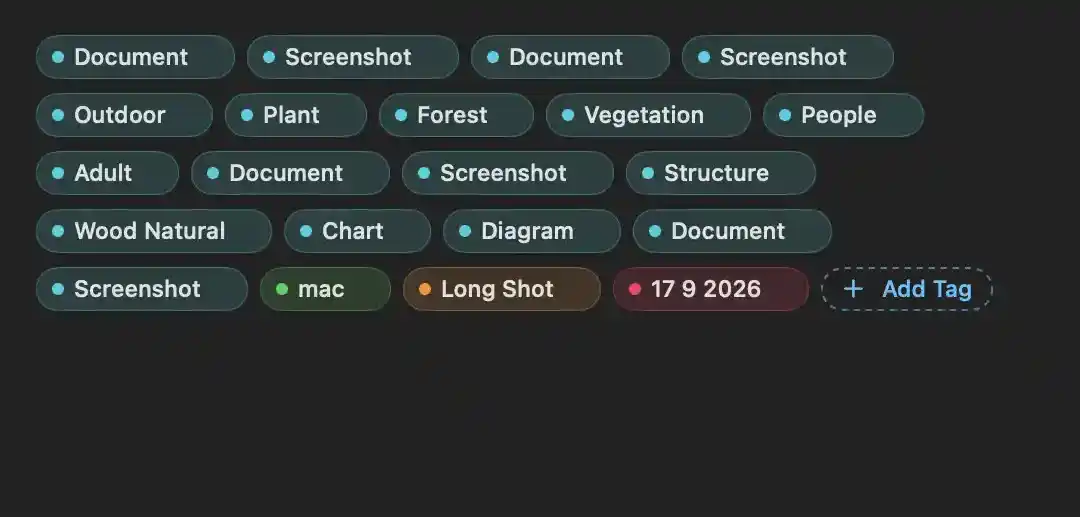
Displays the complete keyword set extracted for the selected media file as a single wrapping flow of horizontally arranged entries. Every entry begins with a small coloured dot that identifies the origin of the keyword, so provenance is readable at a glance without opening a grouping view.
- Keyword entries with a colour dot — each represents one keyword that has been produced for the current file and will be written to Final Cut Pro and, optionally, to Finder tags. The dot's colour encodes the source of the keyword:
- teal — visual subjects detected in the frames
- yellow — text recognised on screen
- green — words spoken in the audio
- orange — shot framing classification
- pink — creation date
- brown — enclosing folder names
- indigo — keywords derived by the generation rules
- accent blue — keywords added by the user
The flow wraps to the next line automatically when the available width is exhausted, so the full set remains visible as the window is resized. Categories that have been switched off by the filter row are absent from the flow, and the text shown is exactly the exported keyword string.
- Hovering over an entry reveals an embedded removal affordance that occupies reserved space, so the surrounding entries never shift position while the pointer moves across the flow.
- Opening the context menu on an entry offers Copy — places that single keyword on the clipboard — and Remove — deletes every occurrence of that keyword from the file's corresponding category. Removal of an automated keyword is permanent for that file only; the underlying media is never modified.
- + Add Tag — the dashed-outline entry at the end of the flow. Activating it converts itself into an inline editable entry for typing a new keyword. Confirming with Return appends the typed text to Your Tags after trimming and duplicate rejection; pressing Escape cancels the edit; losing focus confirms the typed text if it is not empty. The added keyword then participates normally in export, Finder tagging and the search archive.

These actions operate on the currently displayed media item’s tag set and transcription. They provide review, verification, and transfer of generated metadata before export or further curation.
- Audio Tags — Opens the spoken-word keyword review for the current item. Displays detected audio terms with occurrence information and trigger status, allowing terms to be ignored or promoted. Unavailable until audio keyword results exist and audio analysis has completed.
- Full Transcription — Opens the complete speech transcript for the current item. Allows the full dialogue text to be read and copied for verification or external use. Unavailable when no transcript content is present.
- Copy Tags — Places every tag associated with the current item onto the system clipboard as a comma-separated string. Confirms the number of copied tags. Unavailable when the item has no tags.
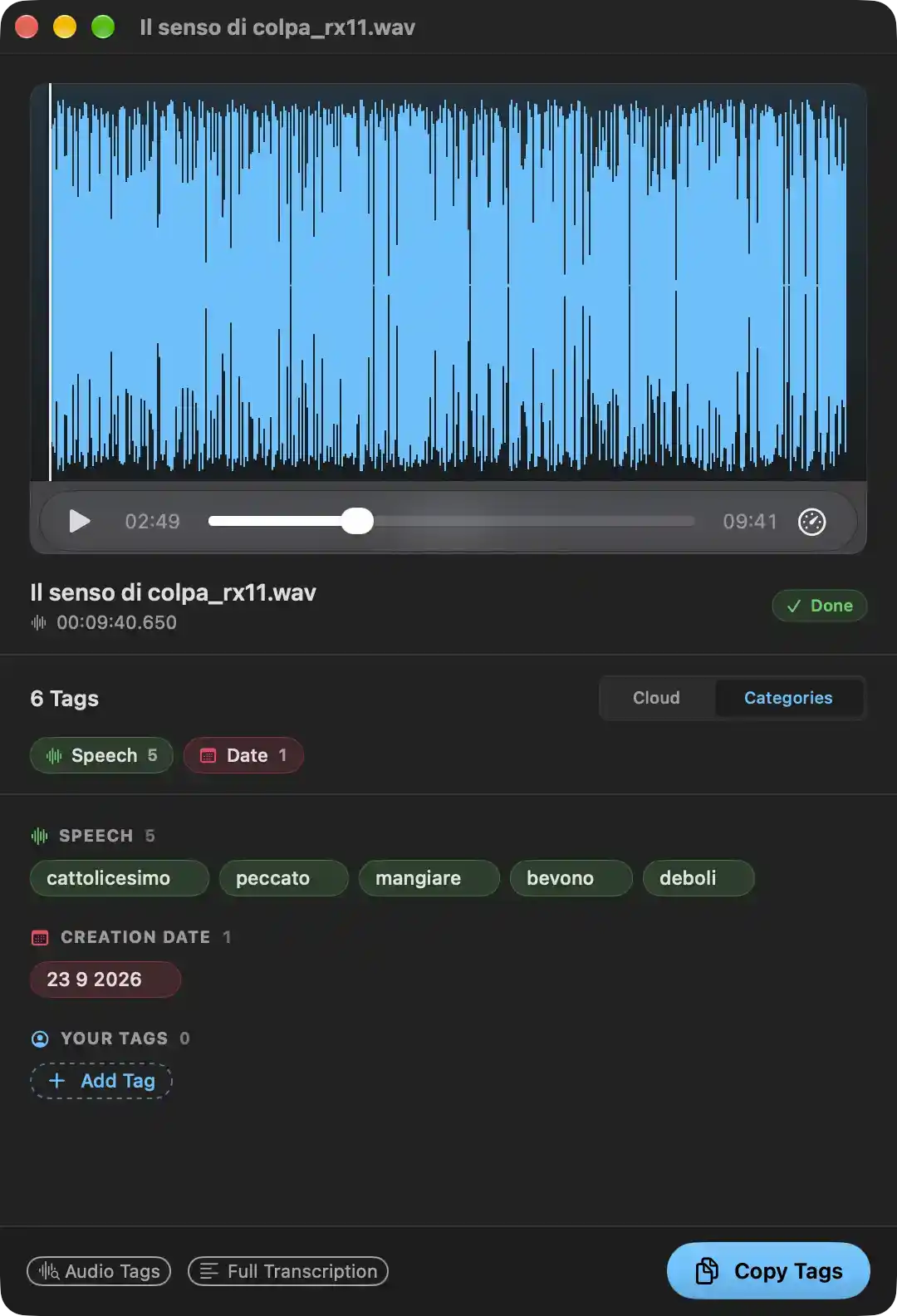
Presents the analysis outcome and curatable keyword set for a single media asset, together with its preview and the follow-up actions available for the extracted metadata.
- Media preview — for an audio asset, the full waveform is drawn over a tinted backdrop. Clicking anywhere on the waveform moves playback to that time; a thin vertical marker follows the current playback position. The inline transport strip beneath provides play/pause, elapsed and remaining time, position seeking, and playback-output selection.
- Asset identification — the file name, a waveform symbol with the total duration as a timecode, and the current processing state (green "Done" once every enabled analysis has finished). While an analysis is in progress this area reflects progress instead.
- Tag total — the number of keywords currently collected for the asset.
- Category filters — one capsule per non-empty tag category, each showing its symbol, name and keyword count (for example Speech 5, Date 1). Selecting one hides or shows that whole category in the listing below; hidden categories are drawn faded. Each also offers Copy and Remove through its context menu.
- Keyword listing, grouped by category — each block shows an icon, an uppercase category name and its count:
- Speech — keywords derived from the spoken content, each presented as a removable capsule (for example cattolicesimo, peccato, mangiare, bevono, deboli).
- Creation Date — the asset's creation date formatted according to the configured date pattern (for example 23 9 2026).
- Your Tags — manually authored keywords; always shown, even when empty, so there is a stable place to add one.
- Removing a keyword — pointing at a keyword reveals a removal affordance; using it deletes every occurrence of that keyword from the asset. A right-click offers copying the individual keyword or removing it.
- Add Tag — turns into a text entry field; confirming appends the typed value to Your Tags (duplicates and blank entries are ignored), while dismissing cancels the entry.
- Audio Tags — opens the keyword manager for the spoken content, where occurrence thresholds and ignore/trigger membership can be adjusted. Unavailable until the speech analysis has produced results.
- Full Transcription — opens the complete raw transcript of the audio in a separate viewer. Unavailable while no transcript exists.
- Copy Tags — places the complete keyword set for this asset on the clipboard as a comma-separated list and confirms how many tags were copied. Unavailable when the asset has no keywords.
Settings
Settings
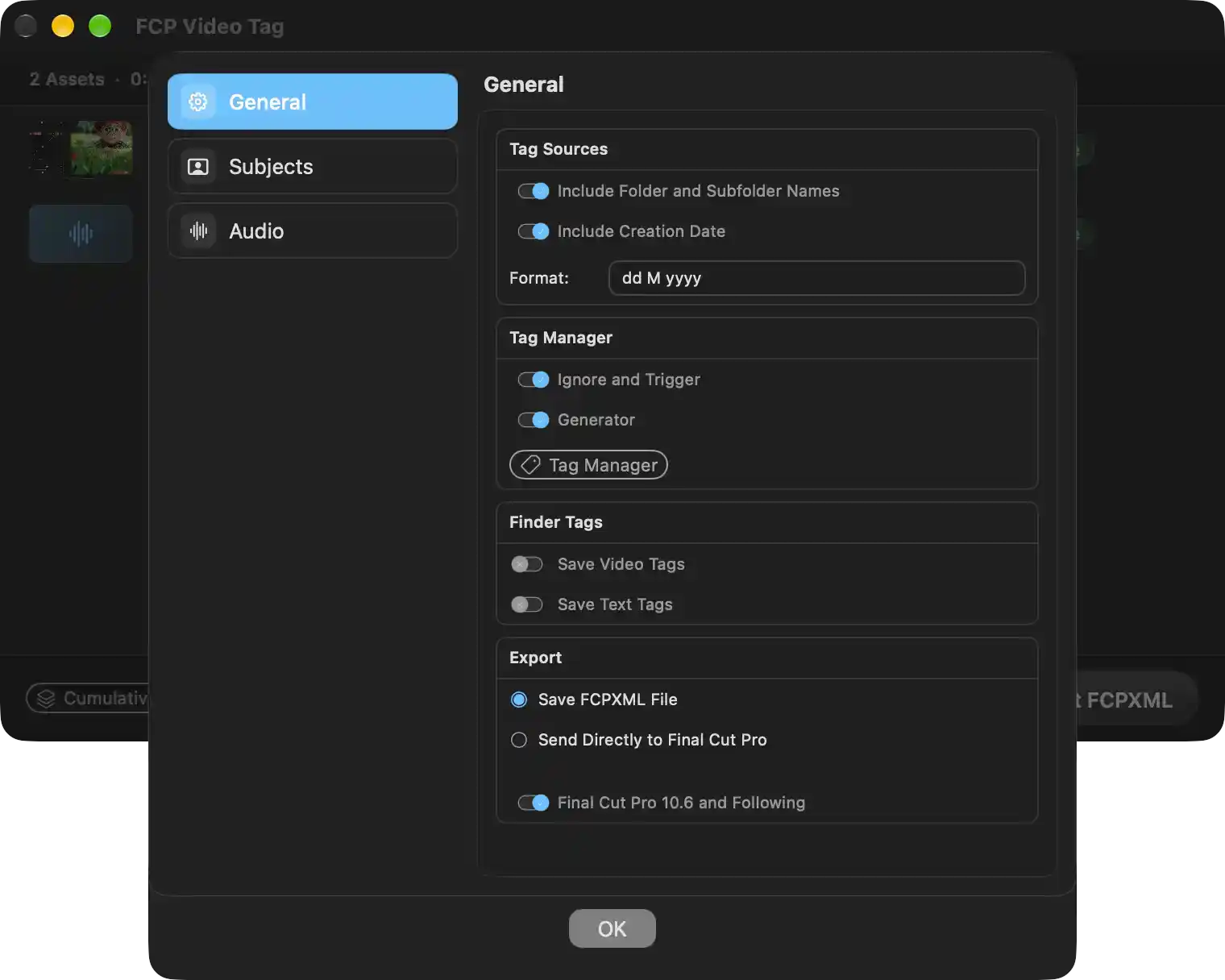
Controls how media analysis produces keywords and how those keywords reach Final Cut Pro and the Finder. Each option applies to every subsequent analysis and export.
Tag Sources
- Include Folder and Subfolder Names — when on, the names of the folders containing an asset, relative to the dropped root folder, are added as keywords.
- Include Creation Date — when on, the asset's creation date is converted into a keyword.
- Format — the date pattern applied to that creation date (e.g. day, abbreviated month, year). Ignored while the creation date keyword is off.
Tag Manager
- Ignore and Trigger — when on, the ignore and trigger rules are applied, so listed words are either dropped from results or forced to appear regardless of occurrence count.
- Generator — when on, the Boolean generation rules run and can add derived keywords to assets.
- Tag Manager — opens the rule editor where the ignore, trigger and generator lists themselves are defined.
Finder Tags
- Save Video Tags — when on, visual and framing keywords are written to the file's macOS Finder tags after analysis.
- Save Text Tags — when on, on-screen text keywords are written to the file's macOS Finder tags.
Export
- Save FCPXML File — export produces a standalone .fcpxml document for manual import or archiving.
- Send Directly to Final Cut Pro — export injects the assets and keyword collections into a running Final Cut Pro session.
- Final Cut Pro 10.6 and Following — when on, the export targets the modern schema for Final Cut Pro 10.6 and later; when off, it targets older versions up to 10.5.x.
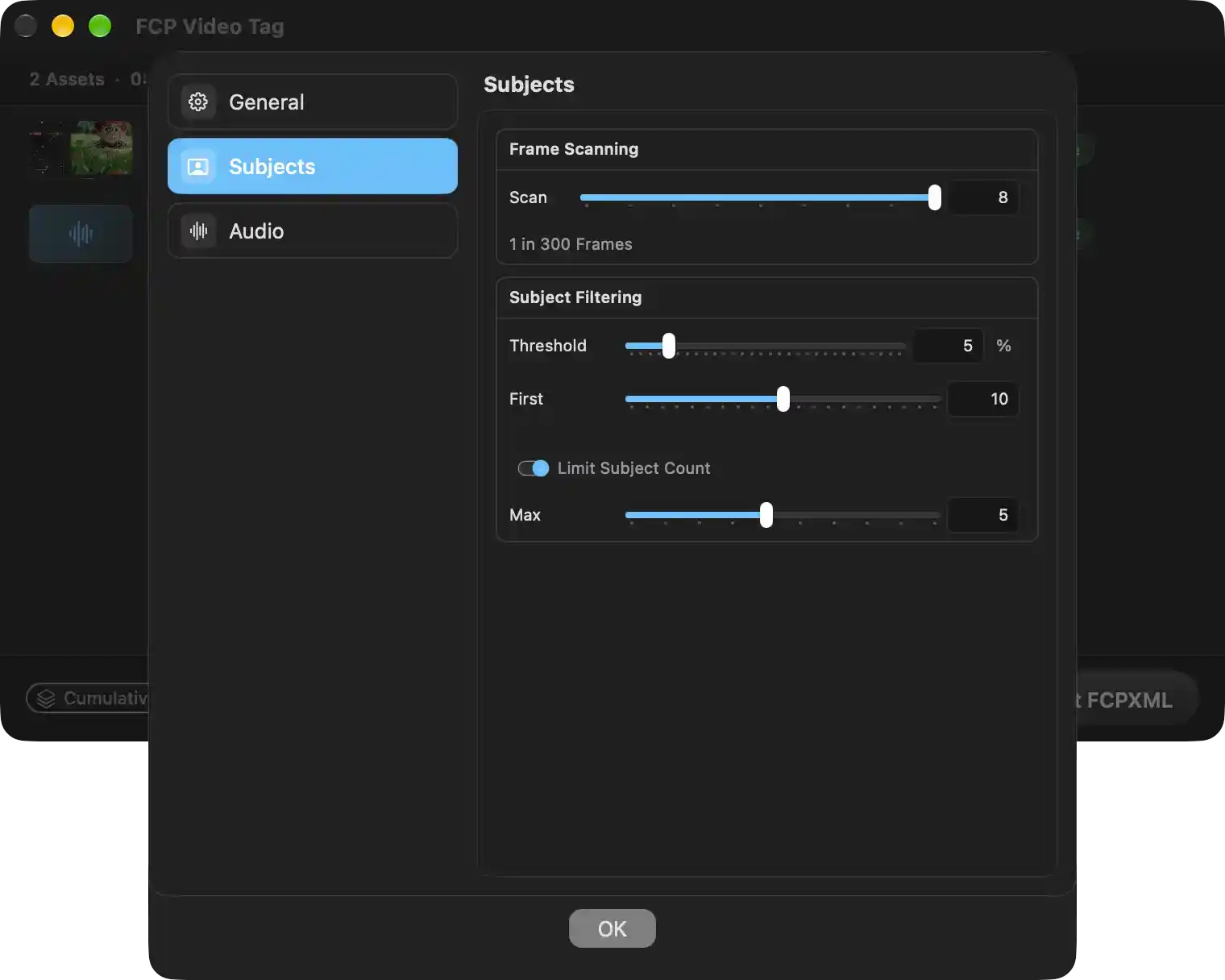
Controls the frame sampling density and the confidence/count limits used when Vision subject recognition runs on video and still assets. Configuration here determines how thoroughly each file is scanned and how many subject keywords reach the exported tag set.
Frame Scanning
- Scan — sets how densely frames are sampled for subject detection, expressed as one analysed frame every N frames (nine granularities, from every frame up to 1 in 300). Higher values analyse fewer frames, reducing processing time on long clips at the cost of missing brief subjects; the current readout shows the selected step and the caption below states the equivalent ratio in plain language ("1 in 300 Frames").
Subject Filtering
- Threshold — the minimum confidence percentage a detection must reach to be kept as a subject tag (1 %–30 %). Lower values yield more tags and more false positives; higher values yield fewer, more reliable tags and a cleaner keyword set. The stored value is normalised internally, so the displayed percentage is the human-facing form.
- First — how many of the highest-confidence subjects are always retained regardless of other limits. Guarantees that the most salient subjects are not crowded out when the maximum count is restrictive.
- Limit Subject Count — enables or disables a hard cap on the number of subject tags produced per asset, preventing keyword explosion on visually busy footage.
- Max — the maximum number of subject tags retained per asset. Only takes effect while the count limit is enabled; with the limit off, every qualifying subject is kept.
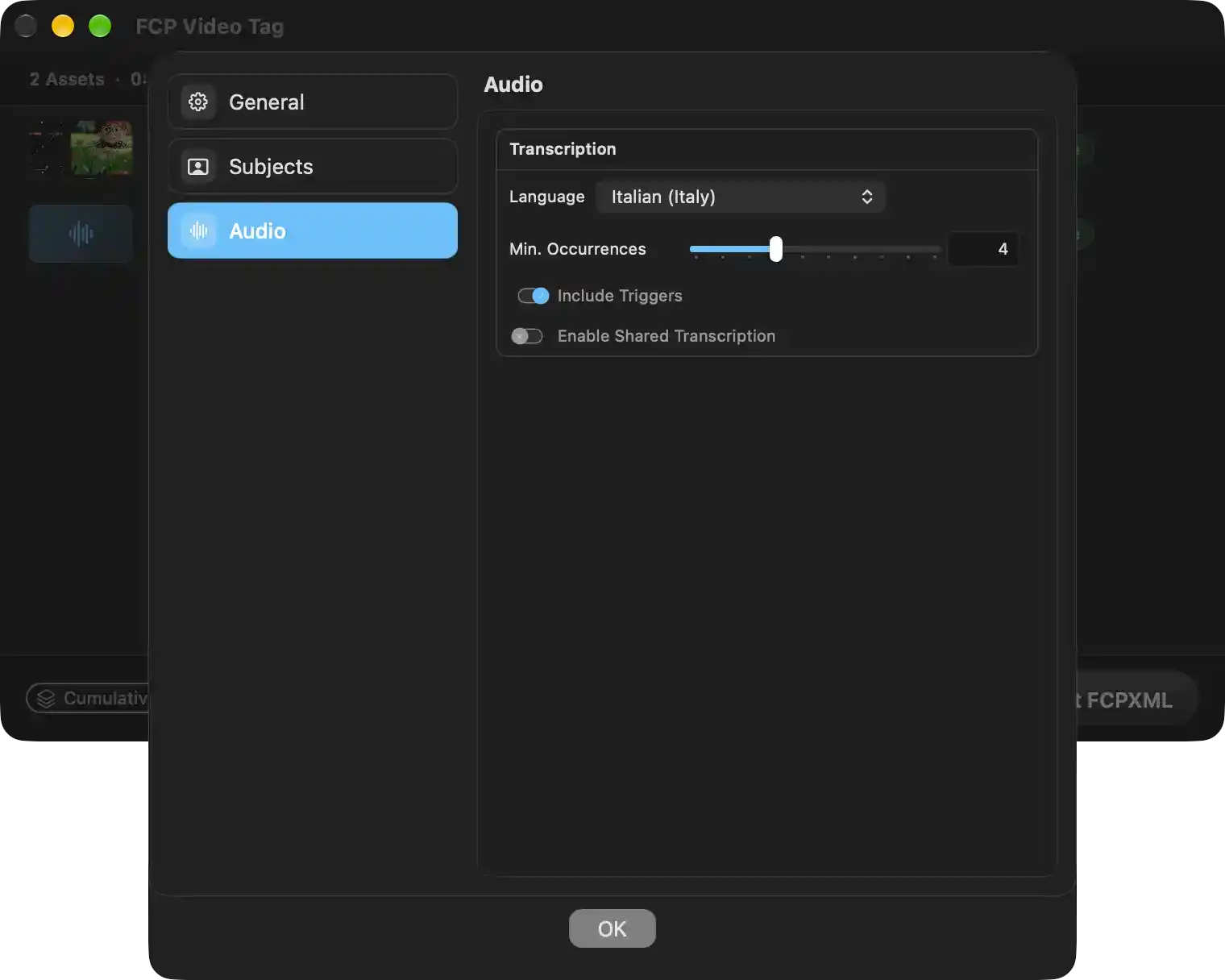
Configures the speech-to-text pipeline that converts spoken audio into keywords for Final Cut Pro. The values here govern the accuracy, volume and reach of the tags produced from every analysed video or audio asset.
- Language — Sets the locale (currently Italian (Italy)) whose recognition model is used when transcribing speech. Changing it affects all subsequent analyses, so a mismatch produces poor or empty keyword results.
- Min. Occurrences — Sets how many times a word must be spoken before it becomes a keyword (currently 4). Raising the value keeps only recurring topics and removes one-off filler; lowering it surfaces more words at the cost of noise. Words that are designated as triggers bypass this threshold.
- Include Triggers — When on, any word registered in the trigger list is always emitted as a keyword, even if it appears fewer times than the threshold allows. Useful for guaranteeing rare but essential terms such as product names, client names or camera cues.
- Enable Shared Transcription — Off by default. When turned on, transcription work is distributed over the UMAN network: segments may be processed on other machines and this Mac in turn contributes processing power. Activation requires explicit confirmation, and it only applies when the built-in on-device engines are not used.